Trip.com Baggage Allowance Guide | Prepare to Travel

By Riley H.
November 18, 2024

Many travelers, especially those heading abroad, often carry multiple bags or oversized luggage that requires check-in before boarding. Thus, it is crucial to ensure your baggage allowance aligns with your needs. To make things easier, Trip.com provides a handy guide to check your flight's baggage allowance and add extra baggage in advance, saving you both time and money!👏
Here’s a step-by-step guide to managing your baggage allowance through the Trip.com app. 👀
Step 1: Find Your Upcoming Trips
- Open the App: Begin by launching the Trip.com app on your mobile device.
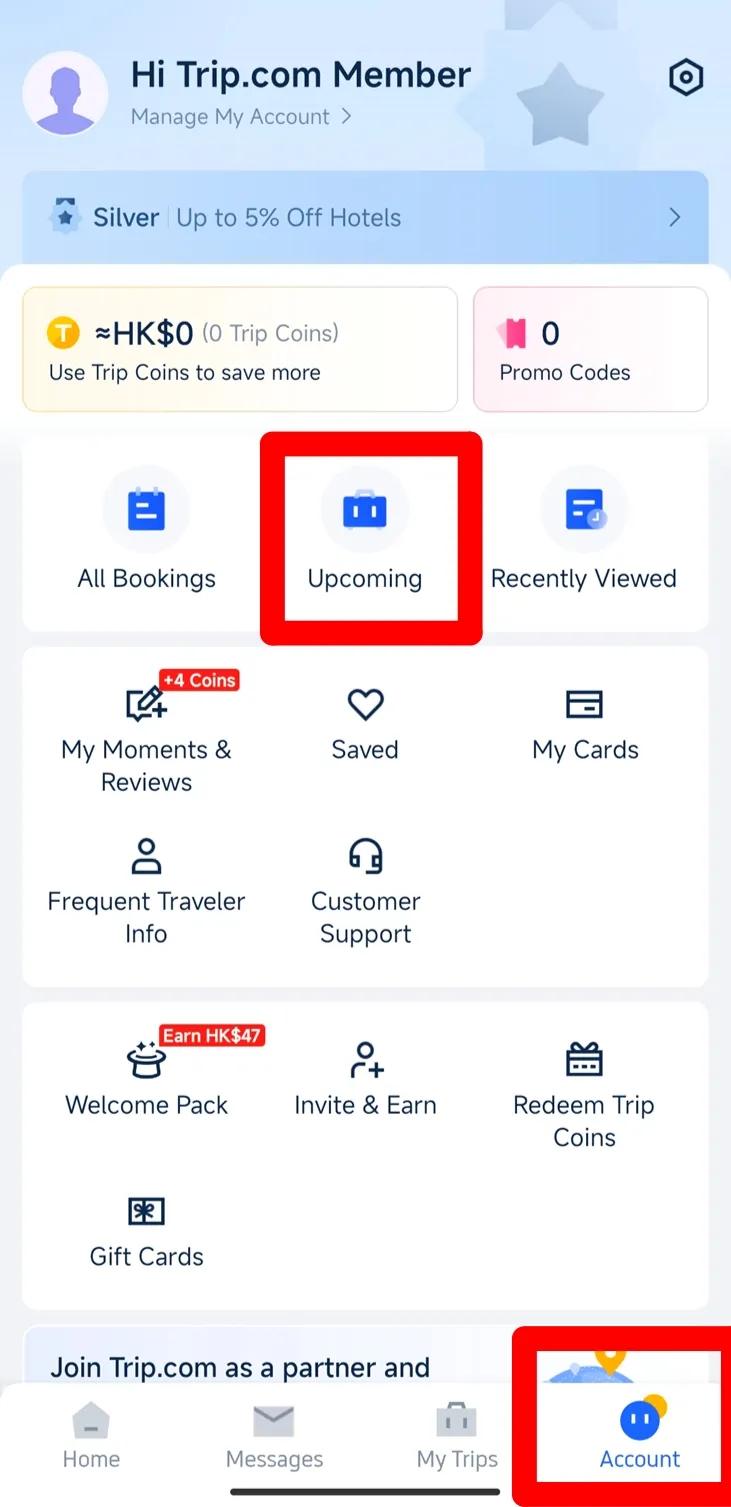
- Access Your Account: Tap the Account icon at the bottom of the screen to navigate to your account page.
- View Your Bookings: Look for the Upcoming button in the middle of the screen. Tap it to view your upcoming trips.
Step 2: View Your Flight Status
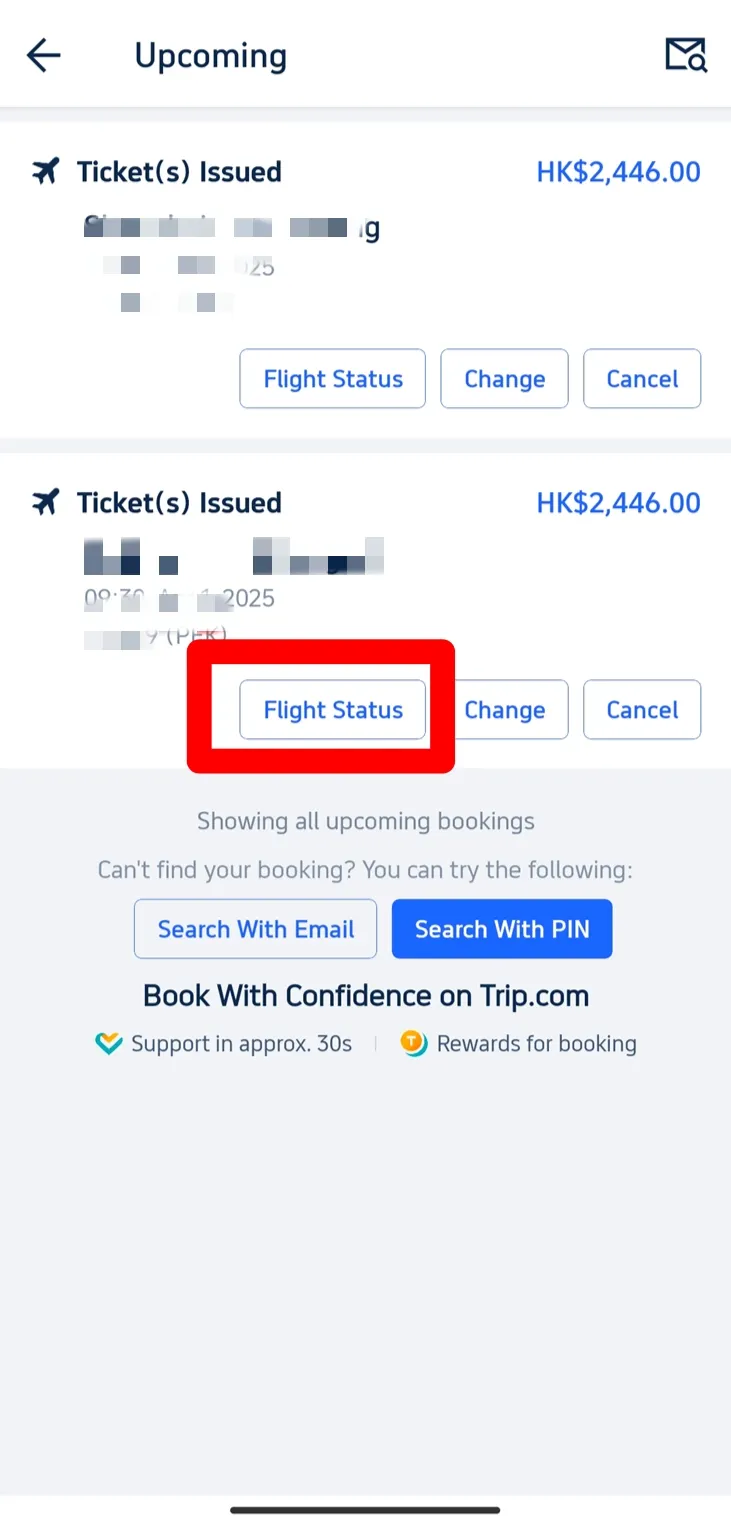
- Select Your Flight: On the Upcoming page, you’ll find a list of your booked flights. Locate the flight you want to check and tap on it.
- Tap on "Flight Status": To access details about your baggage allowance, click on the Flight Status button..
Step 3: Check Your Baggage Allowance
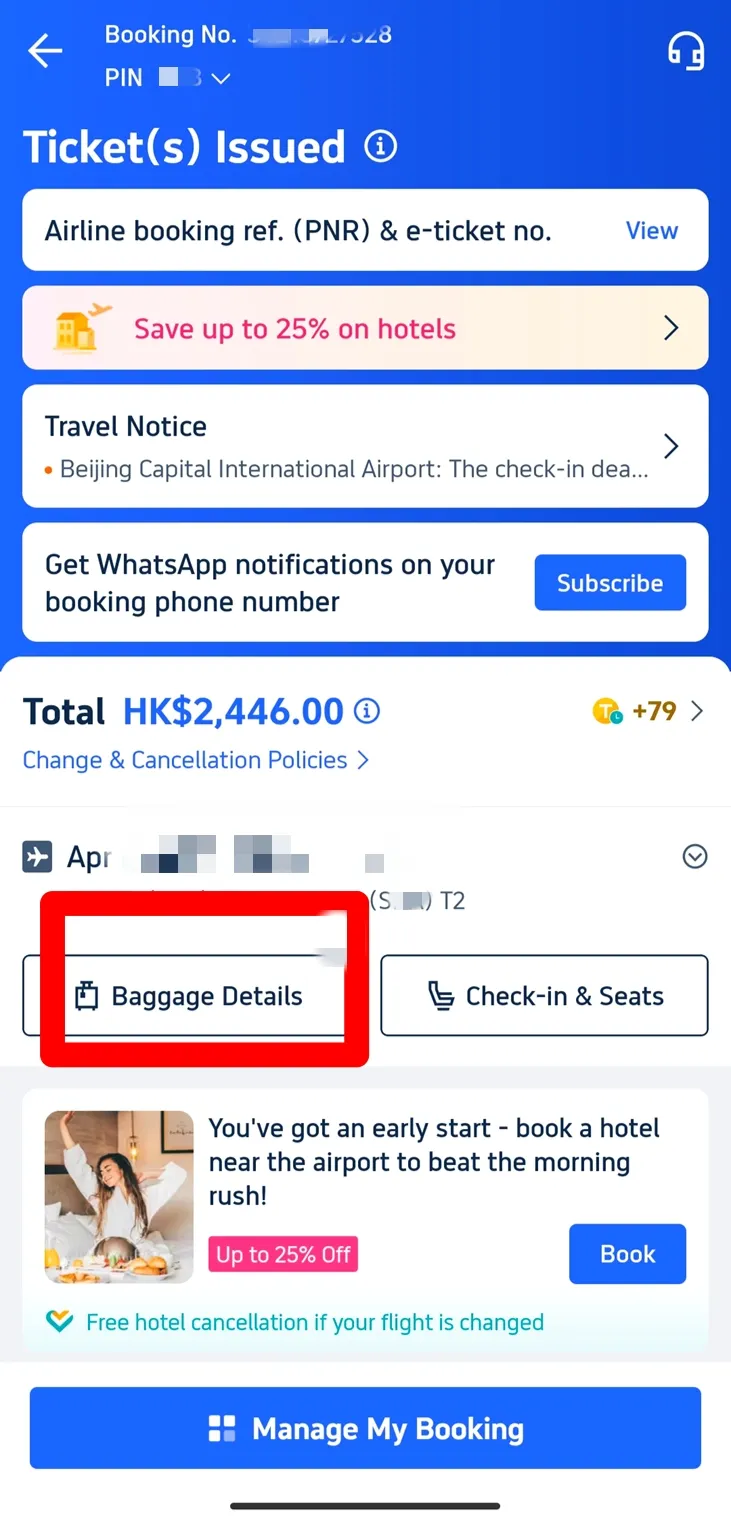
- Find Baggage Details: Within the Flight Status section, you can find the Baggage Details button and tap on it to proceed.
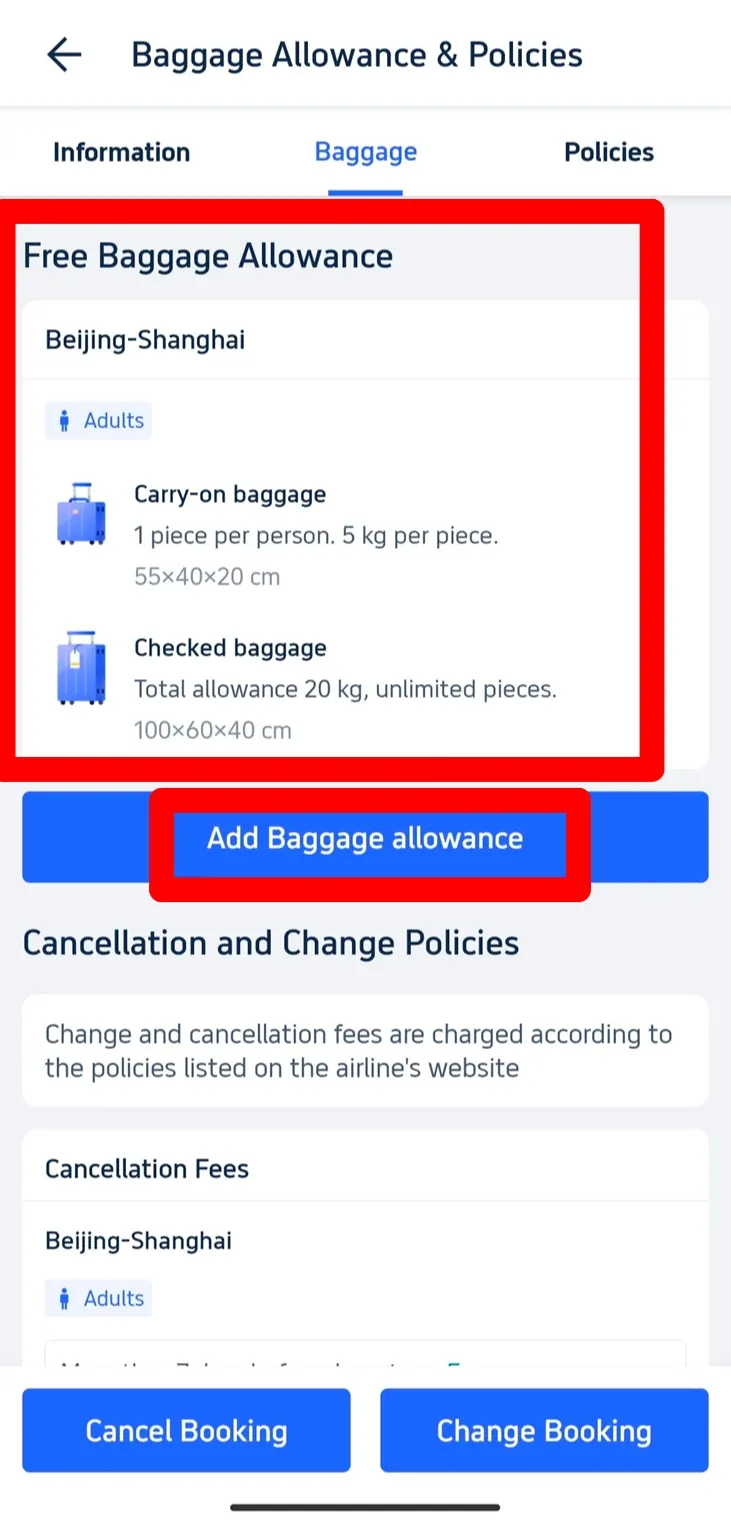
- Review Free Baggage Allowance: On the Baggage Details page, you’ll see the free baggage allowance included with your ticket. This will display both carry-on and checked baggage allowances, including the number of bags and weight limits. For instance, it might indicate one carry-on bag with a maximum weight of 5 kg and checked baggage up to 20 kg.
Step 4: Add Extra Baggage Allowance
- Click on "Add Baggage Allowance": If you require additional baggage beyond your free allowance, simply tap the Add Baggage Allowance button on the Baggage Details page.
Step 5: Explore Baggage Options
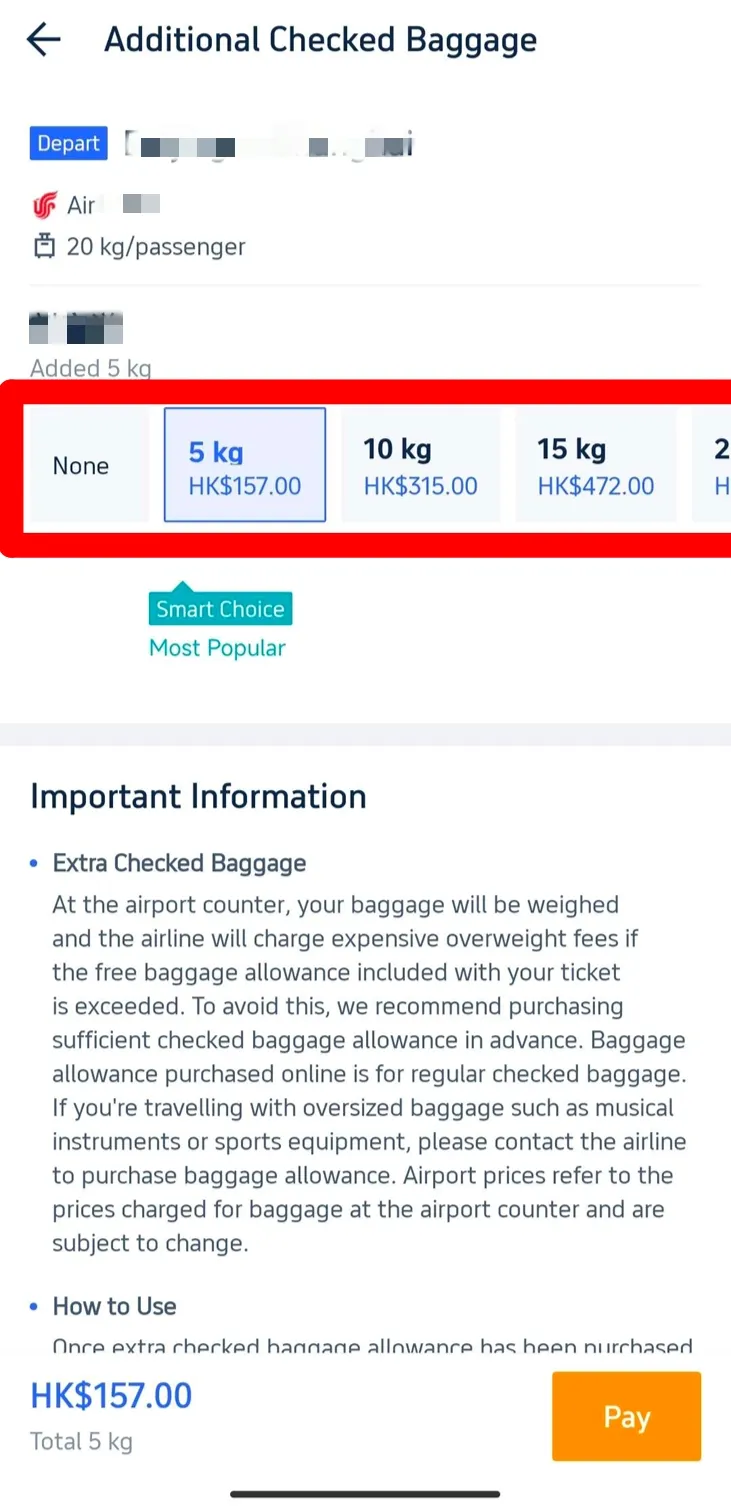
- Select Additional Baggage: Once you tap Add Baggage Allowance, a range of options for extra luggage will appear. Choose the amount of additional weight you need, and the app will instantly display the corresponding costs for each option.
- Smart Choice Recommendation: The Trip.com app highlights a Smart Choice option, offering the most popular baggage allowance selected by other travelers, making it easier for you to decide.
Baggage Allowance Tips
Avoid Extra Fees
Check Special Baggage

Luggage is weighed as passengers check in at the airport. (from Wikipedia)
Enjoy your Trip with Trip.com!

Trip.com is an international online travel agency that offers 24/7 customer service in multiple languages. It offers easy booking services for flights, hotels, and tours and activities. As Platimum & Diamond Members of Trip.com, you can access a free airport lounge, earn more Trip coins, save more on hotel booking, etc.
Explore More
Trending
-
Popular Airlines