Trip.com Check-In: How to Use Smart Check-In Online

By Trip.com
April 9, 2026
Learn how to easily check in for your flight on Trip.com, including steps for Smart Check-In online on Trip.com and other check-in options. ✈️
See all flights


What is Trip.com Smart Check-In?

Trip.com Smart Check-In is an easy way to check in for your flight online. On the Trip.com app or website, you can skip the airport lines, select your seat, and get your boarding pass—all with just a few taps on your phone.
Top 3 Reasons to Love Trip.com Smart Check-In 💡
- Save Time ⏳: No more waiting in long queues—check in from the comfort of home.
- Super Easy 🪑: Choose your seat and get your boarding pass in just a few clicks.
- Travel Stress-Free 😌: Check in early and feel confident your trip is off to a smooth start.
How to Check-In Online on Trip.com?
Step 1: Check in to the Trip.com app
Log into the Trip.com app, go to “Upcoming”, and select your flight booking.
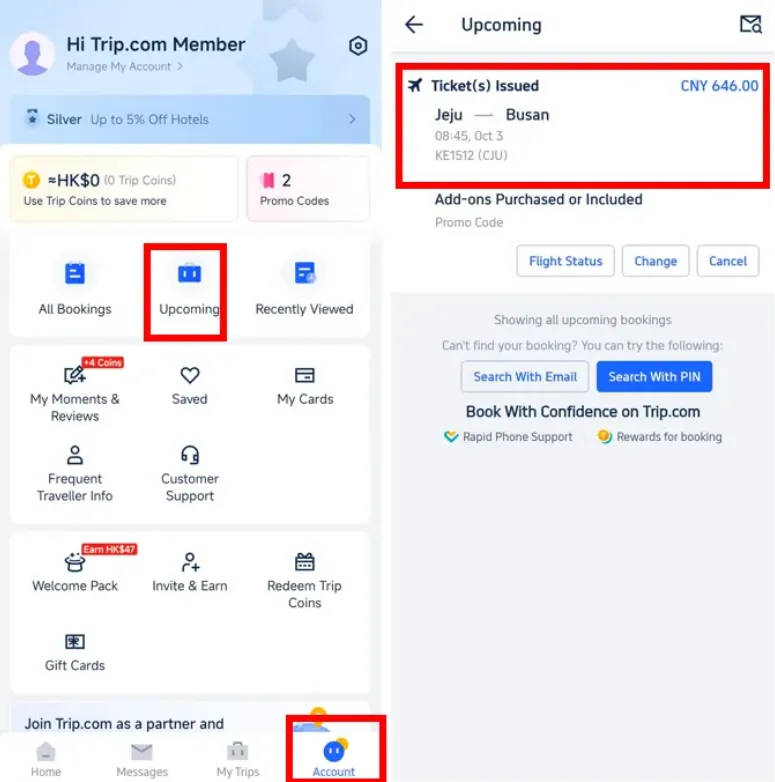
Step 2: Find your Smart Check-in flight booking
Tap on "Check-in & Seats" to go to the details page. Click "Add" to access the Trip.com check-in page.
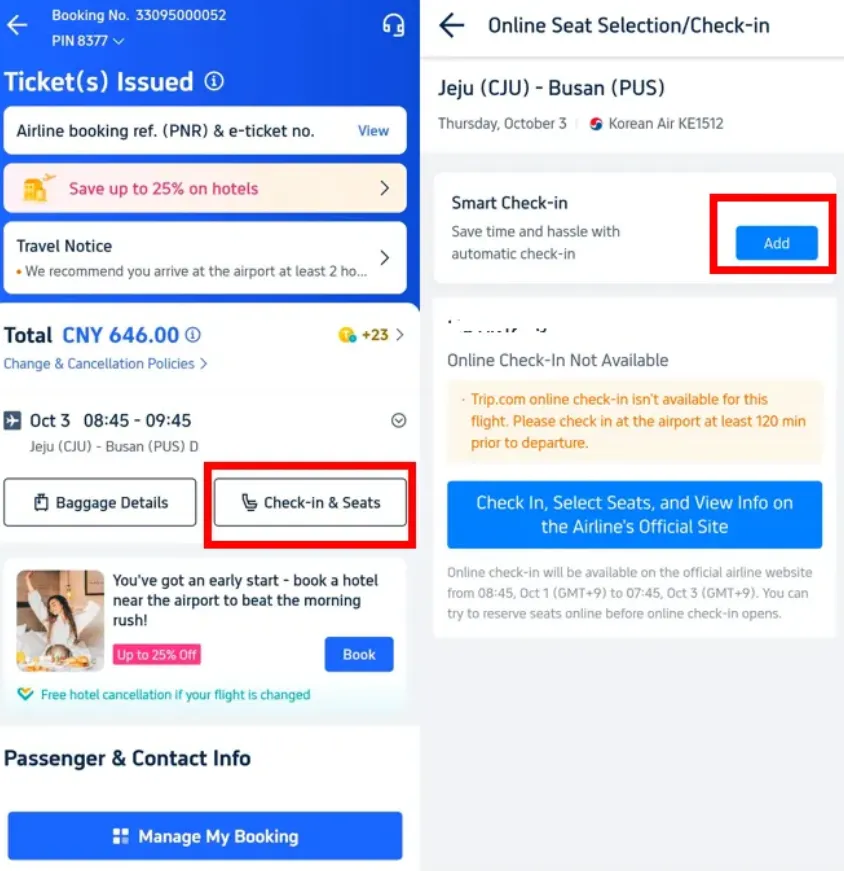
Step 3: Select and confirm your preferred seat
Confirm your details, select your preferred seat, and tap “Confirm” to finish check-in.
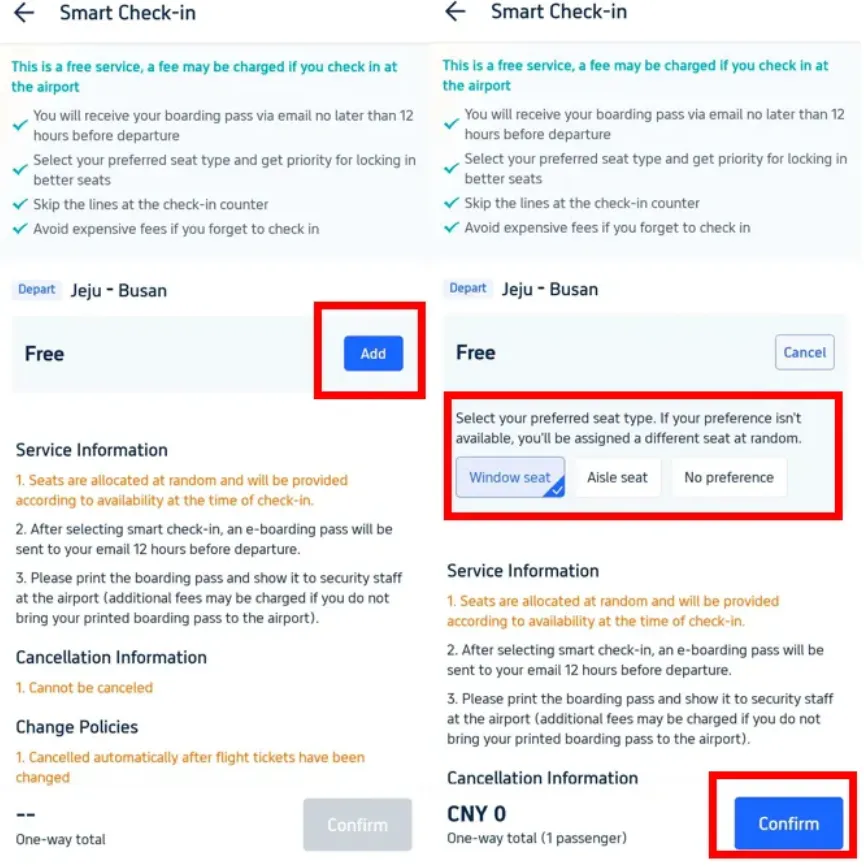
What Are the Requirements for Online Check-In on Trip.com?
To check in online on Trip.com successfully, you need:
- A confirmed flight booking in your Trip.com account
- Valid ID or passport that matches your ticket information
- Airline booking reference (PNR) if required
- No special services that require in-person verification at the airport
- A flight that is eligible for online check-in (supported by the airline and Trip.com)
4 Common Ways to Check In
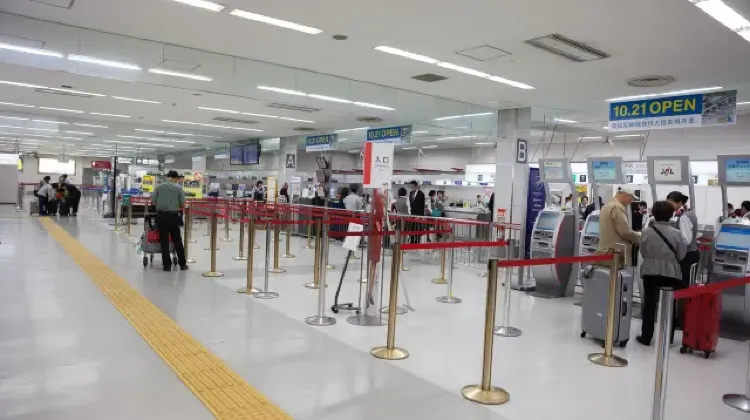
Check-in is the process of getting ready to board your flight. It involves getting your boarding pass, selecting your seat, and dropping off any checked luggage. Here are the common ways to check in:
Check-In Method | Details |
At the Airline Counter | Requires standing in line at the airport. |
At Airport Check-In Machines | Available for e-tickets at selected airports. |
On the Airline’s Website | Ideal if you’re travelling with carry-on luggage only; you can head straight to security with your boarding pass. |
Trip.com Smart Check-In | Select your flight in the app, add your details, and choose your seat directly from the booking details page. |
Tip: For international flights, airlines usually ask for the booking code (PNR), which you can find in your Trip.com booking details under the airline’s reference number.
How can I Cancel my Check-in?

If you want to cancel your check-in before the flight, it’s safest to contact the airline directly. They have the authority to cancel your check-in and assist with any changes. If you're unsure, Trip.com customer support can help by providing the airline's contact information and assisting with any booking adjustments.
- Trip.com Customer Support: Generally, Trip.com customer service can assist with booking modifications, but canceling check-in isn't typically within their direct control. Airlines usually manage check-in cancellations. However, Trip.com customer service might be able to guide you on the next steps or direct you to the airline for assistance.
- Directly at the Airport: If you're already at the airport, you can approach the airline’s check-in counter to cancel your check-in or get a new boarding pass. Most airlines have this option, but you’ll need to confirm with the airline.
- No-Show: If you miss your flight, your check-in will be automatically cancelled by the airline. This is the default for most cases of no-show.
See all attractions
 2536 booked






[10% Off] Trip.com Hotel Promo Codes
Search Top Global Hotels
See All Hotels







FAQs about Trip.com Check-in
-
When does online check-in open and close on Trip.com?
-
Why can’t I find the online check-in option for my flight?
-
Can I use online check-in if I have checked baggage?
-
Do I still need to go to the airport if I finish online check-in?
-
When should I check In online?
Disclaimer: This article has been provided by an individual contributor or third party platform. If there is any discrepancy regarding the copyright, please contact us directly and we will delete the content immediately.
Trending Searches
-
Popular Airlines