Getting Your Trip.com E-Receipt

By Trip.com
August 27, 2024

What is a Trip.com E-Receipt?
When booking flights, hotels, or travel packages through Trip.com, travellers receive an e-receipt that provides a comprehensive overview of their travel expenses. This e-receipt includes booking details, a summary of costs, and payment information. It can be accessed and printed at any time. Trip.com guarantees a quick and reliable service, ensuring that every booking is transparent and traceable.
How to Obtain an E-Receipt on Trip.com
This article outlines how to obtain an e-receipt from Trip.com, using the example of a flight booking. 👇👇👀
| Step | Action |
| Login | Open Trip.com app and log in. |
| Select Booking | Go to "All Bookings" and choose your order. |
| Request | Find "More Options" and select "E-Receipt". |
| Receive | Enter your email and click "Send". |
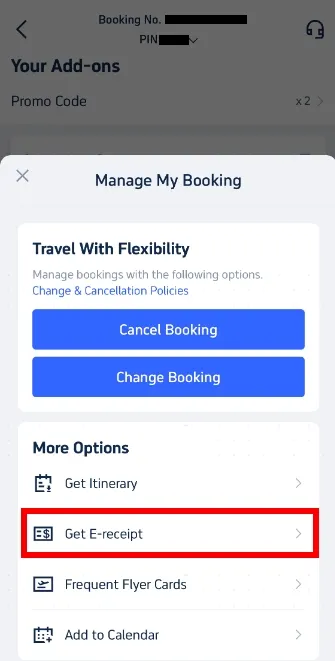
Get E-Receipt | Step 1: Manage My Booking
Open the Trip.com app and log in to your account. Tap on 'My Bookings' to locate the booking you wish to view.
Navigate to 'Manage My Booking'. In the 'More Options' section, find and select the 'Get a Receipt' button.
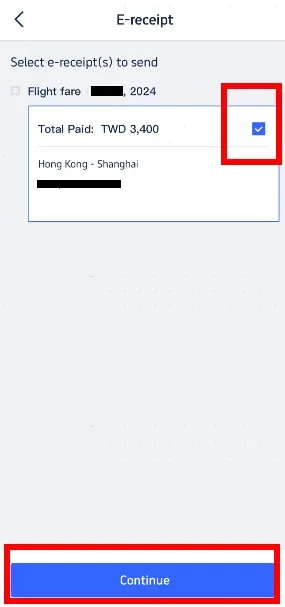
Get E-Receipt | Step 2: Select E-Receipts
On the receipt page, select the flight e-tickets for which you wish to obtain a receipt. Choose the relevant e-tickets and click 'Continue'.
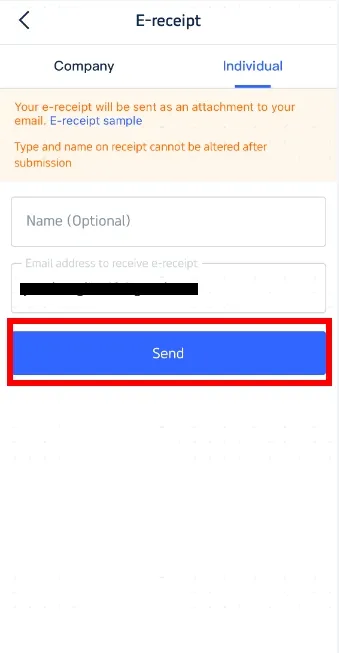
Get E-Receipt | Step 3: Enter Details for Receipt
If you are booking as an individual, select 'Individual'. Enter your name (optional) and the email address where you would like the e-receipt to be sent. Please note that the type and name on the receipt cannot be changed after submission. Click 'Send' to proceed.
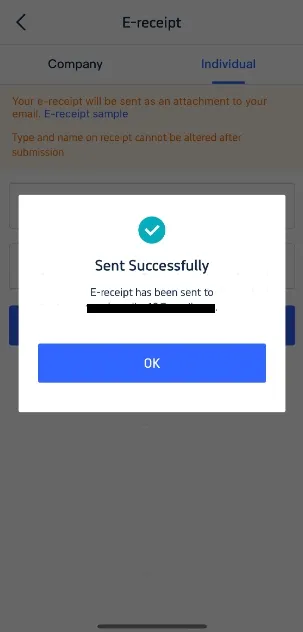
Get E-Receipt | Step 4: Confirm & Receive E-Receipt
You will receive a confirmation message indicating that the e-receipt has been sent successfully. Click 'OK' and check your email to download your e-receipt. This e-receipt serves as your official receipt; while printing is optional, it may be useful for record-keeping.
Additional Tips for Trip.com Receipts
- Check Your Spam Folder: If you do not see the e-receipt in your inbox, check your spam or junk mail folder.
- Keep Your Email Updated: Ensure that your email address on your Trip.com account is up to date to receive all correspondence and receipts promptly.
- Store Digitally: Save your e-receipts on your device for easy access and future reference, which helps in managing and tracking your travel expenses efficiently.
That is how to obtain a Trip.com e-receipt. If you are looking to book a cheap flight ticket and need an e-receipt, use Trip.com!
Trending Searches
-
Popular Airlines