How to Get Your Trip.com E-Ticket

By Trip.com
November 6, 2024

Learn all about Trip.com e-tickets for flights and trains. Discover what an e-ticket is, how to obtain it, and how to print it, among other details. 👇👇👇
What is a Flight E-Ticket?
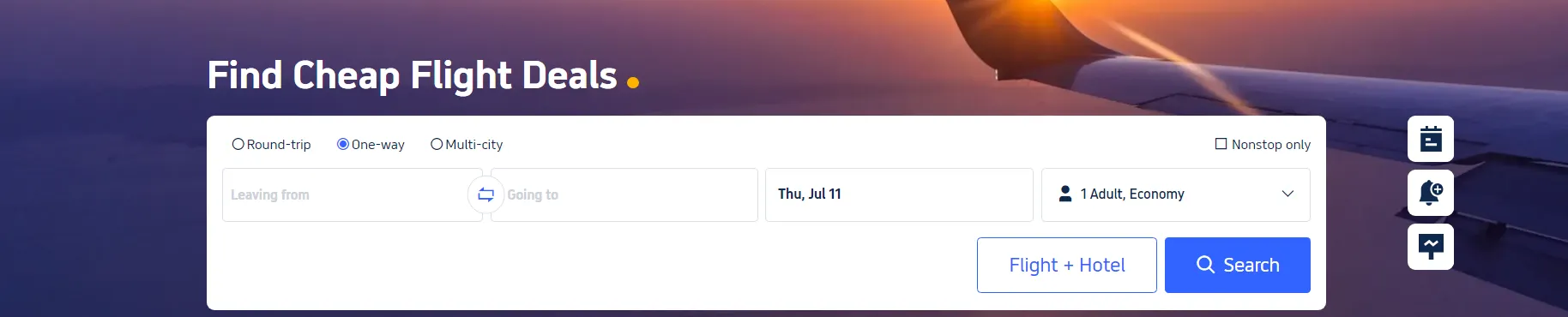
An e-ticket or online flight ticket on Trip.com is a digital version of a traditional paper ticket. It is a travel document that you can purchase through Trip.com's website or mobile app. The primary benefit of an e-ticket is that there is no need to print it, as all the necessary information is securely stored in the airline's database.
When you book a flight on Trip.com, the e-ticket acts as a contract between you and the airline. Your ticket information is safely stored and can be accessed using your PNR (Passenger Name Record) or booking reference number. This allows you to check in and pass through security with just your passport, streamlining the boarding process.
How to Book Cheap Flights on Trip.com
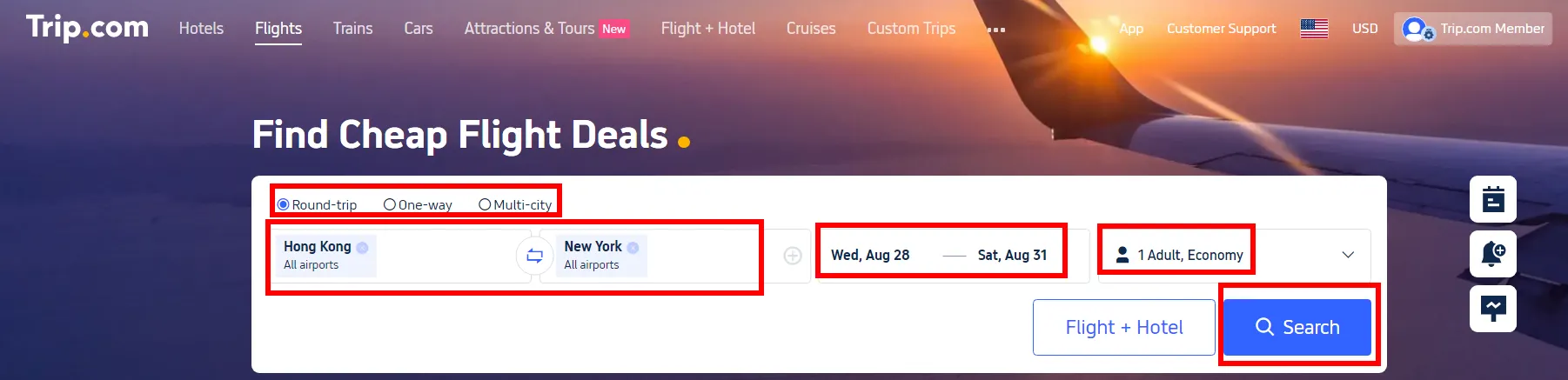
In order to get your flight ticket on Trip.com, you shall first book a flight on Trip.com~ Check how to book the best & cheapest flight below🥳
- Visit the Website/App: Start by visiting the Trip.com Flight website or Trip.com mobile app.
- Search for Flights: Enter your departure and destination cities, travel dates, one way/round trip and business/economy class & the number of passengers. Click "Search" to view available options.
- Select Your Flight: Choose a flight that fits your schedule and budget. Use filters for price, duration, and airline preferences.
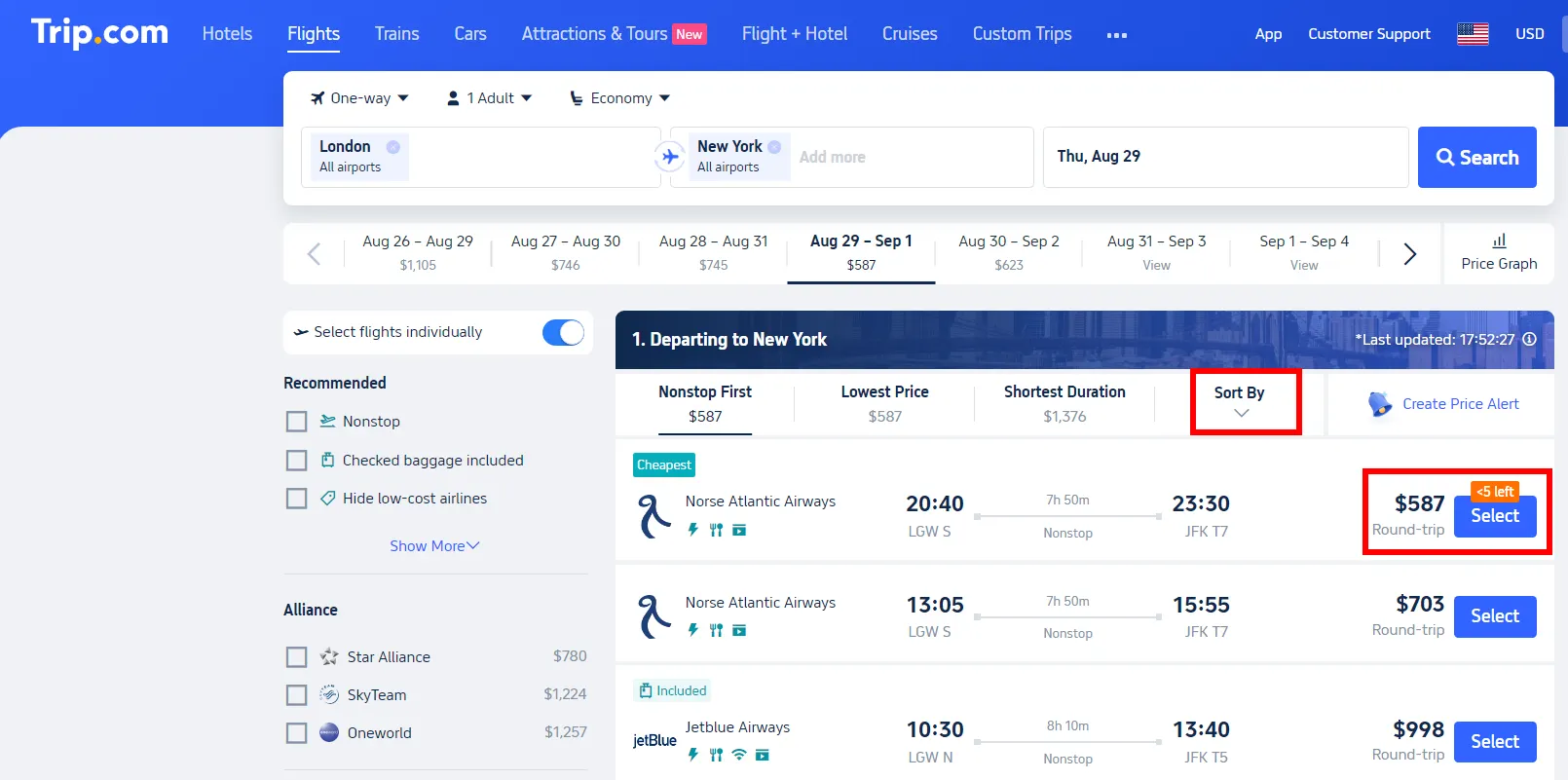
- Enter Passenger Details: Fill in the necessary details for all passengers. Ensure names match the IDs or passports.
- Payment: Review your selected flight details and proceed to payment. Choose your preferred payment method, and complete the purchase.
For tips on finding cheap tickets on Trip.com, check Trip.com Flight Deals Monthly Update & the guide below.
How to Get an E-Ticket for Flight
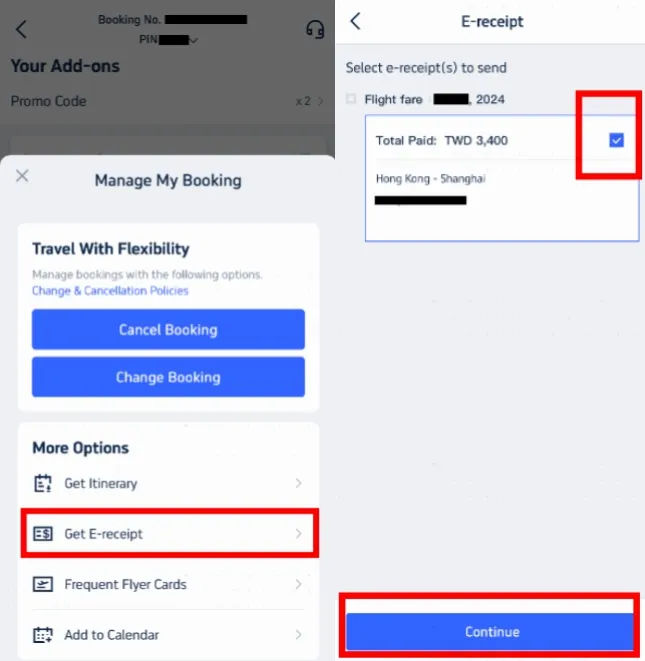
Step 1: Access Manage My Booking
- Open the Trip.com app and log in to your account.
- Navigate to 'Manage My Booking.'
- Under the 'More Options' section, locate and click the 'Get a Receipt' button.
Step 2: Select E-Receipts
- On the receipt page, choose the flight e-tickets you want to obtain.
- Select the relevant e-tickets and click 'Continue.'
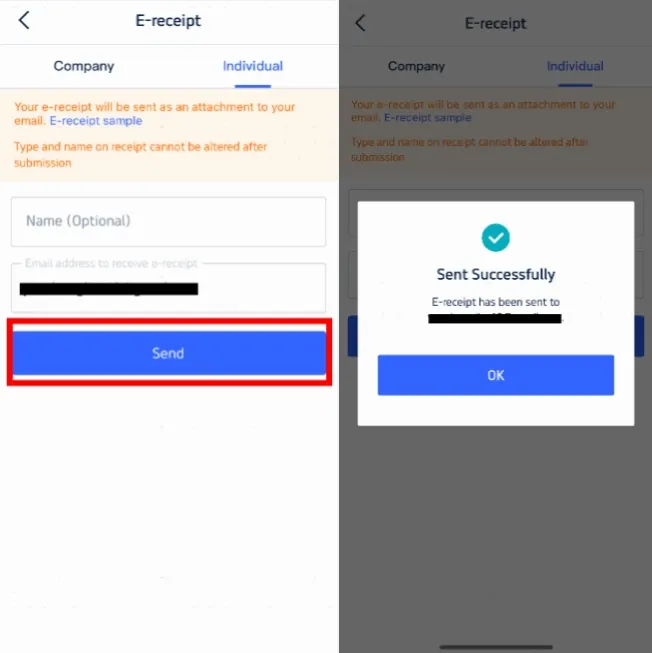
Step 3: Enter Details for Receipt
- If you are an individual, select 'Individual.'
- Enter your name (optional) and the email address where you wish to receive the e-receipt.
- Please note that the type and name on the receipt cannot be changed after submission.
- Click 'Send' to proceed.
Step 4: Confirm & Receive E-Receipt
- A confirmation message will appear, indicating that the e-receipt has been sent successfully.
- Click 'OK' and check your email to download your e-receipt.
- This e-receipt serves as your online flight e-ticket. Printing it is optional, but not required.
How to Print an E-Ticket for Flight
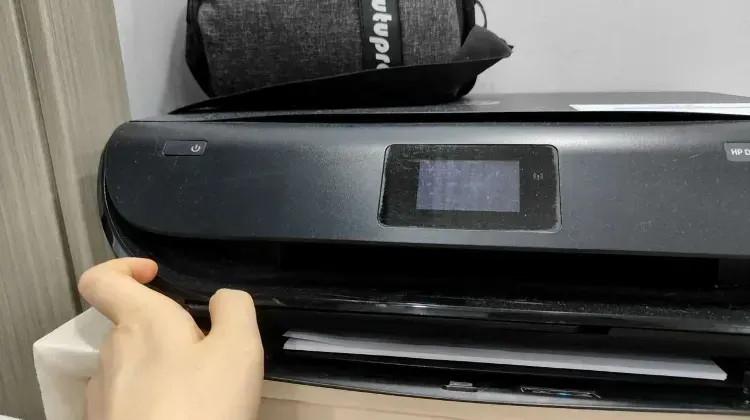
After purchasing your ticket online, Trip.com will email you with your e-ticket attached. Please locate this email in your inbox.
【Note】
- For domestic flights, carrying a printed e-ticket is generally not required at security checkpoints, though it is always wise to have a digital copy on your device.
- For international flights, it is advisable to carry a printed copy of your e-ticket to present at various checkpoints.
Step 1: Download the E-Ticket
- Open the email and download the attached e-ticket file to your device.
Step 2: Print the E-Ticket
- Open the downloaded file and print it using your printer.
Check-In and Using Your Flight Ticket
- Online Check-In: Use your PNR or booking reference number to check in online via the airline’s website or mobile app. This step often allows you to choose seats and download your boarding pass.
- Airport Check-In: Present your e-ticket (either digital or printed) along with your ID or passport at the check-in counter or self-service kiosks at the airport. You’ll receive a physical boarding pass if required.
- Boarding: At the gate, show your boarding pass and ID to board the flight. Ensure your e-ticket or printed ticket is handy in case it’s requested again.
Trip.com Flight Refund and Cancellation Policies
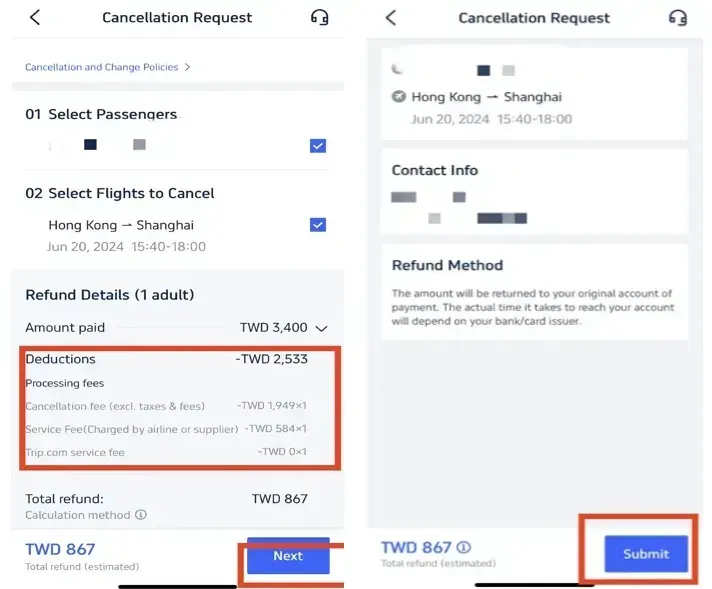
Trip.com cancellation policies vary based on the airline and ticket type. Refunds depend on the fare rules associated with your ticket. Some tickets may be non-refundable, while others might involve a cancellation fee.
- Steps to Cancel Booked Flights
- Go to “My Trips” in the Trip.com app or website.
- Find the flight booking you wish to cancel under "Manage My Booking."
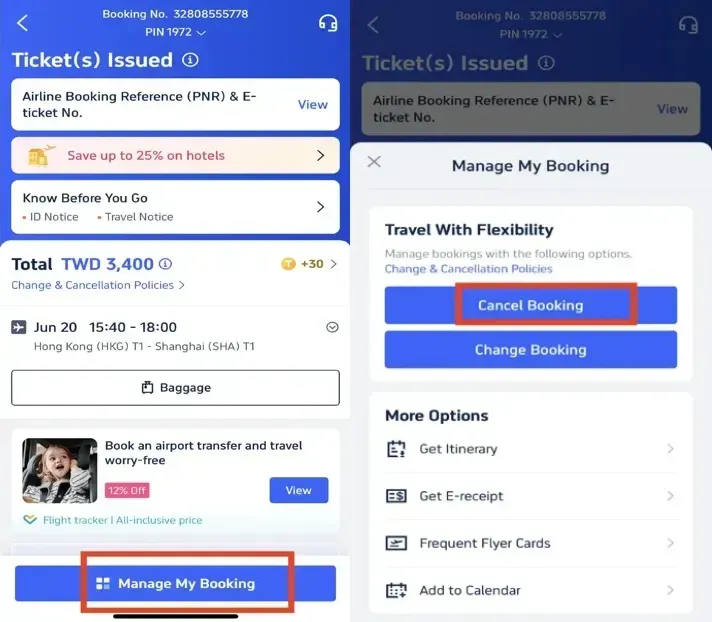
- Click “Cancel Booking” and follow the prompts to review the refund details and any applicable fees.
- Confirm and submit your cancellation request. Refunds are processed according to the airline’s policy and may take some time to reflect in your account.
Trip.com Flight Bookings and Membership Perks
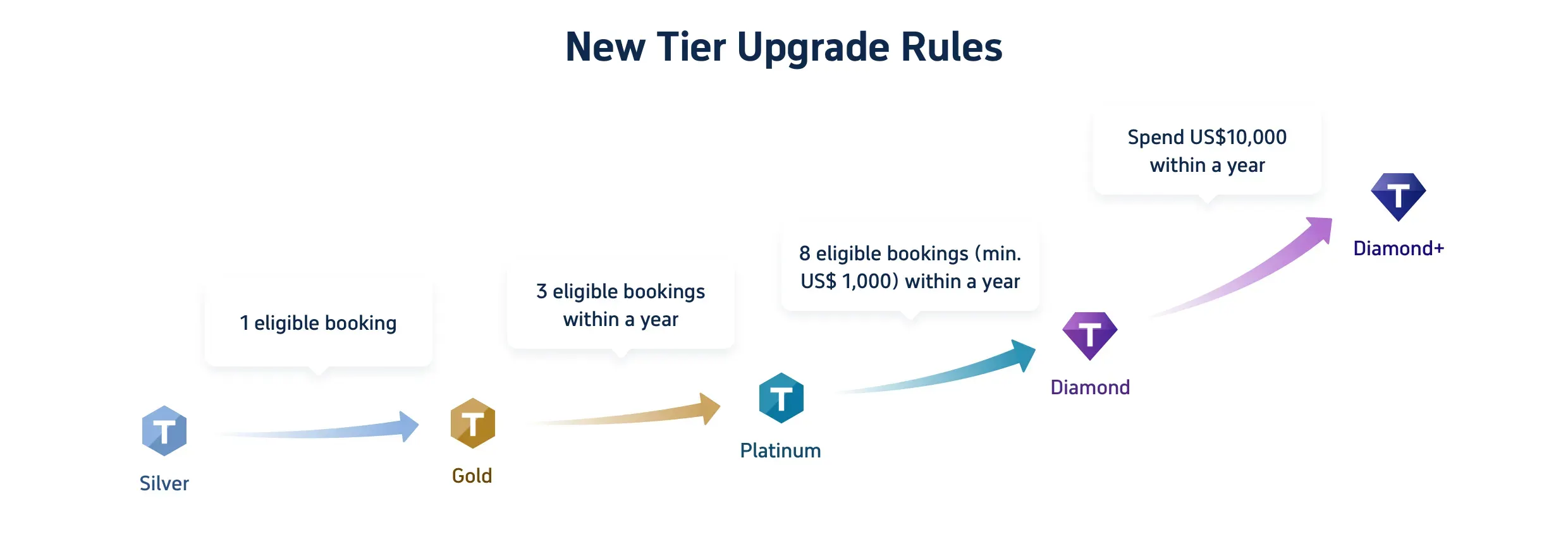
Booking flights on Trip.com doesn’t just give you access to great flight deals; it opens up a world of rewards through Trip.com Membership. As you earn Trip Coins with every booking, you’ll also unlock exclusive perks as you level up through the membership tiers—from Silver to Diamond+. Here’s a closer look at what each membership level offers:
Benefits & Trip Coins for 5 Member Tiers
| Tier | Silver | Gold | Platinum | Diamond | Diamond+ |
| Hotel Deals | exclusive hotel deals | exclusive hotel deals | exclusive hotel deals | exclusive hotel deals | exclusive hotel deals |
| Additional Trip Coins Earned | Standard earning rate | Earn 10% more Trip Coins | Earn 30% more Trip Coins | Earn 40% more Trip Coins | Earn 50% more Trip Coins |
| Train Booking Benefits | - | No refund handling fees (1 time/year, app only) | No refund handling fees (2 time/year, app only) | No refund handling fees (4 time/year, app only) | No refund handling fees (8 time/year, app only) |
| VIP Lounge Access | - | - | 1 time per year | 2 time per year | 3 time per year |
| Free global eSIM data package*NEW | - | - | 1GB/3 days data package*1 | 3GB/5 days data package*1 | 3GB/5 days data package*2 |
| Airport transfer model upgrades*NEW | - | - | - | Standard car to Medium car*2 | Standard car to Medium car*2+ Medium Van to Premium Van*2 |
| Priority Support | - | - | - | - | Priority Support for calls and chats + One-Stop VIP Service |
| Free attraction tickets*NEW | - | - | - | - | Free Ticket*1 |
Trending Searches
-
Popular Airlines