Trip.com Flight Cancellation: Step-by-Step Instructions

By Trip.com
August 27, 2024
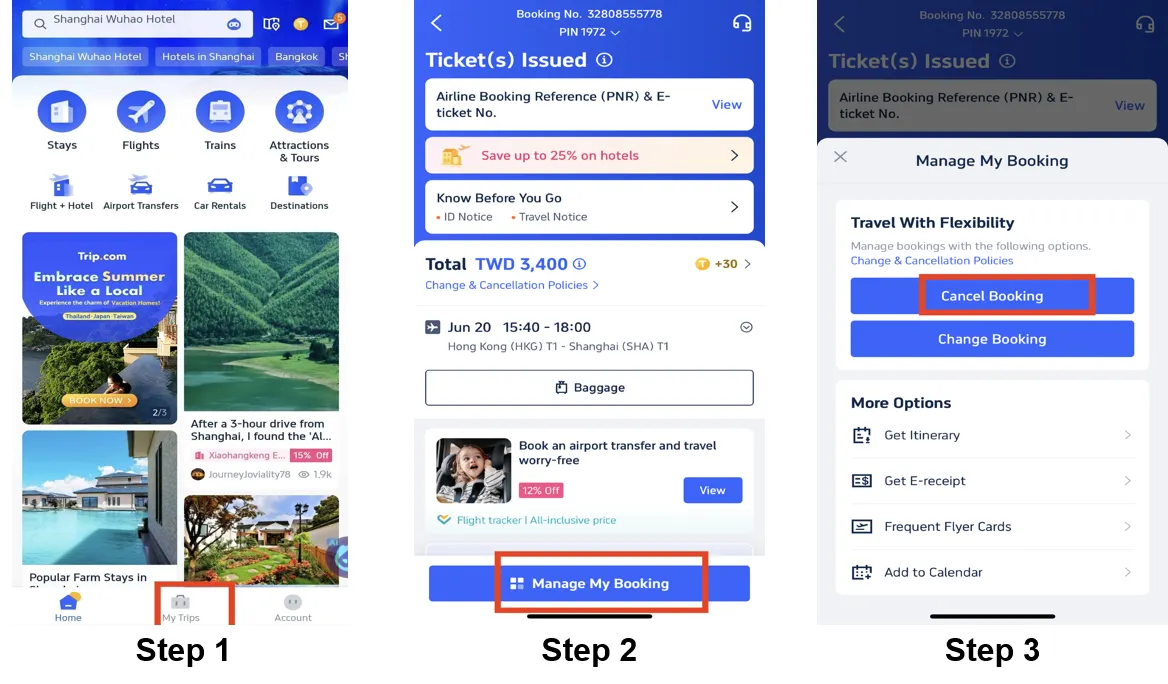
Step 1: Open the Trip.com App to Cancel the Flight
Log in to your Trip.com account on your mobile device and Go to "My Trips" section. Here you will find all your bookings.
Step 2: Find the Flight Booking
Click on "Manage My Booking" to find the flight booking you need to cancel.
Step 3: Request the Trip.com Flight Cancellation
Tap on the "Cancel Booking" button to proceed with cancelling your flight booking. According to Trip.com Flight Cancellation Policy, cancelling flight will request service fee and cancellation fee.
Step 4: Confirm the Trip.com Flight Cancellation
Verify the refund information and confirm the processing fees related to cancelling your flight. Next, click the "Next" button to enter the details page.
Step 5: Submit the Trip.com Flight Cancellation
Check the refund details and refund information, and tap "Submit" to finish the process.
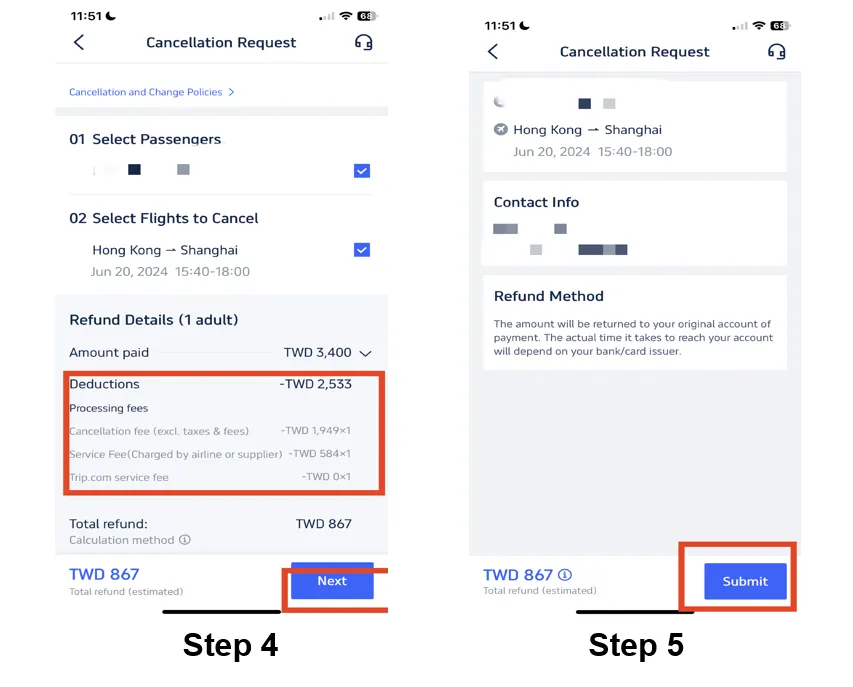
*The screenshots are only for reference.
Disclaimer: This article has been provided by an individual contributor or third party platform. If there is any discrepancy regarding the copyright, please contact us directly and we will delete the content immediately.
Trending Searches
-
Popular Airlines