Trip.com Flight Change: Easy Guide | Trip.com

By Trip.com
August 27, 2024

Plans can sometimes change unexpectedly, and you may need to adjust your flights.
Fortunately, modifying your flight bookings on Trip.com is straightforward. Here is a guide to assist you in altering your travel itinerary. 👇👇👇
How to Change a Flight on Trip.com App
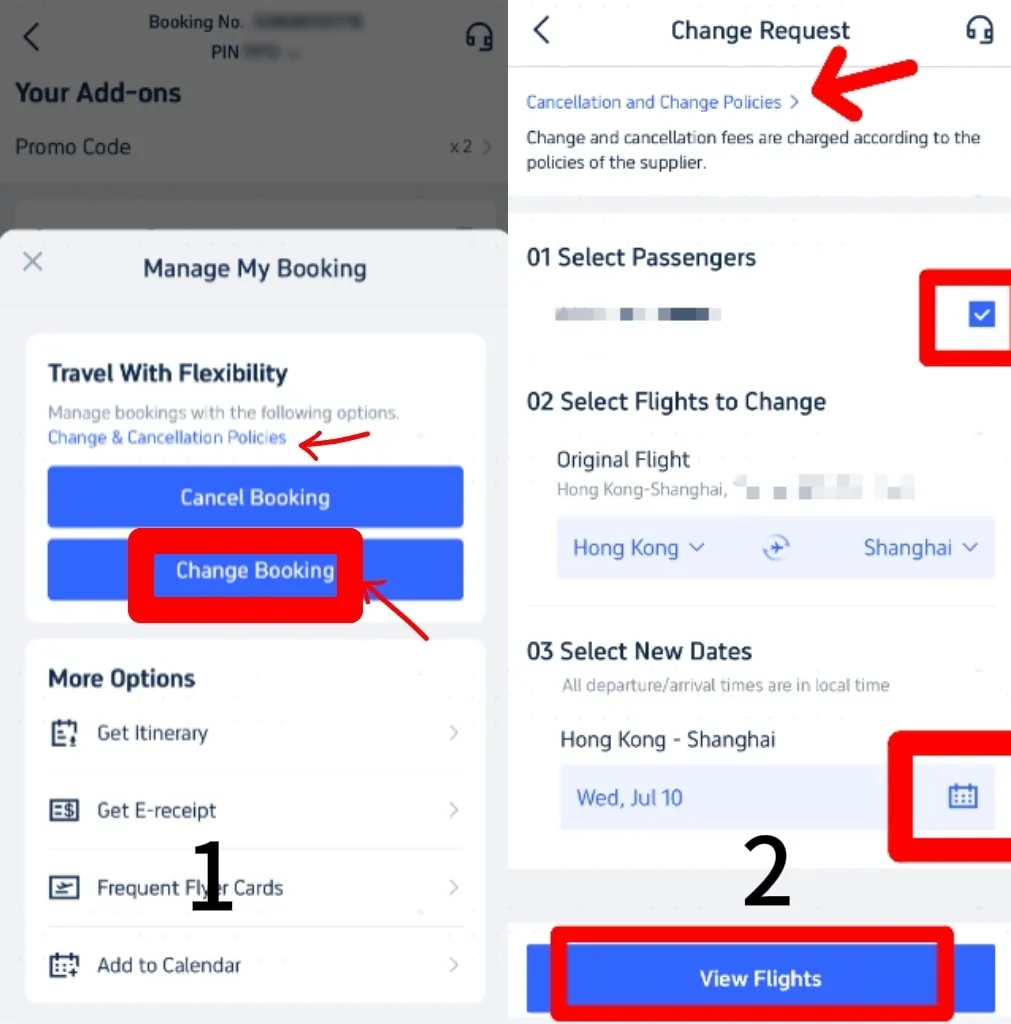
Step 1: Locate Your Bookings
- Open the Trip.com app and go to 'Manage My Booking' to find your existing flight reservations.
Step 2: Change Bookings
- Check the change and cancellation policies applicable to your flights.
- Select 'Change Booking' to access the change request page, where you can review these policies once more.
Step 3: Choose Passengers & Travel Dates
- Select the passengers whose flights need to be altered.
- Confirm the original flight you wish to change and select new travel dates by clicking on the calendar button.
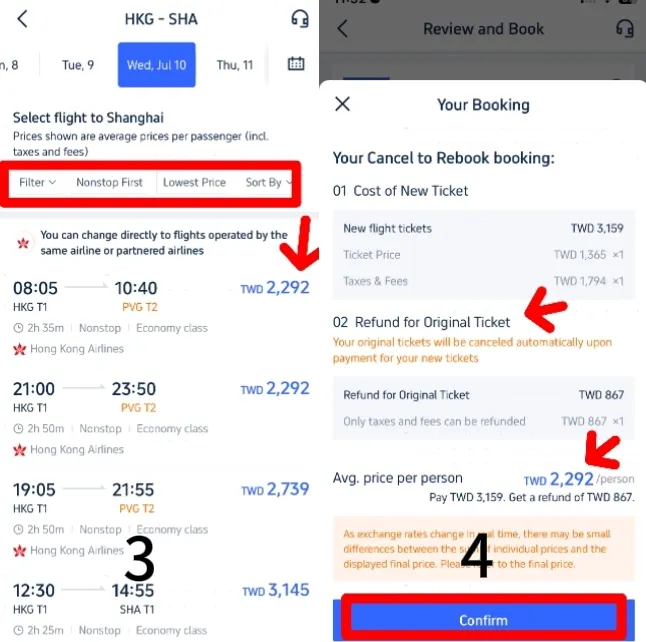
Step 4: Select New Flights
- After choosing new dates, click 'Find Flights' to view available options.
- Apply filters such as 'Non-stop' or 'Lowest Price' to find your preferred flight. Ensure the new flight is operated by the same airline or a partner airline.
Step 5: Confirm Booking
- Review your new flight selection and confirm the booking details.
- Compare the refund amount for your original ticket with the cost of the new flight. The final price will be adjusted accordingly.
Step 6: Finalise Payment
- If the cost of the new flight is acceptable, confirm your choice and proceed to payment.
- After completing the payment, you will receive a confirmation of your updated booking. Ensure all details are correct.
How to Change a Flight on Trip.com Website
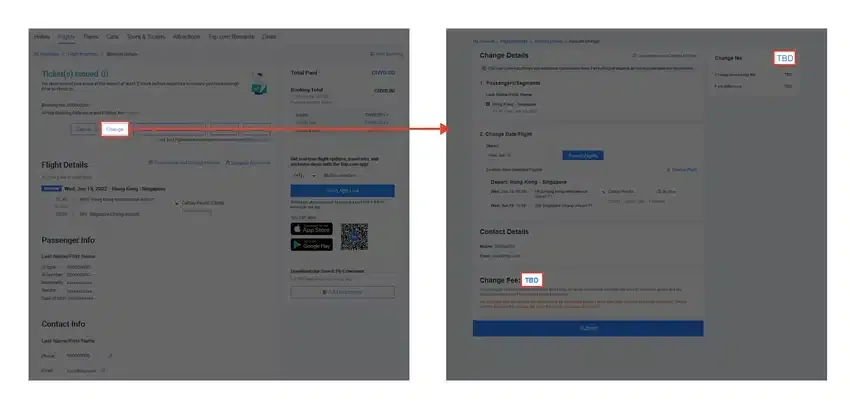
Source from theflightexpert
Step 1: Access Your Bookings
- Log in to the Trip.com website and navigate to your list of bookings. Locate the booking you wish to modify and select it.
Step 2: Initiate the Change
- Click on "Change", then proceed to the "Change Date / Flight" section. Begin searching for alternative flights. Refer to the provided screenshot for additional guidance.
Step 3: Choose Your New Flight
- Select your preferred new flights based on availability. Follow the on-screen instructions to finalise the change.
Step 4: Review and Confirm Change Fees
- Any applicable change fees will be shown in the "Change Fee" section within the flight booking details.
How to Book flights on Trip.com?
Step 1: Download the App
- Begin by downloading the Trip.com app from the App Store or Google Play Store. The app frequently features exclusive deals and discounts that are not available on the website.
Step 2: Sign Up and Log In
- Create a new account or log in to your existing Trip.com account to access member-only offers and earn Trip Coins with your bookings.
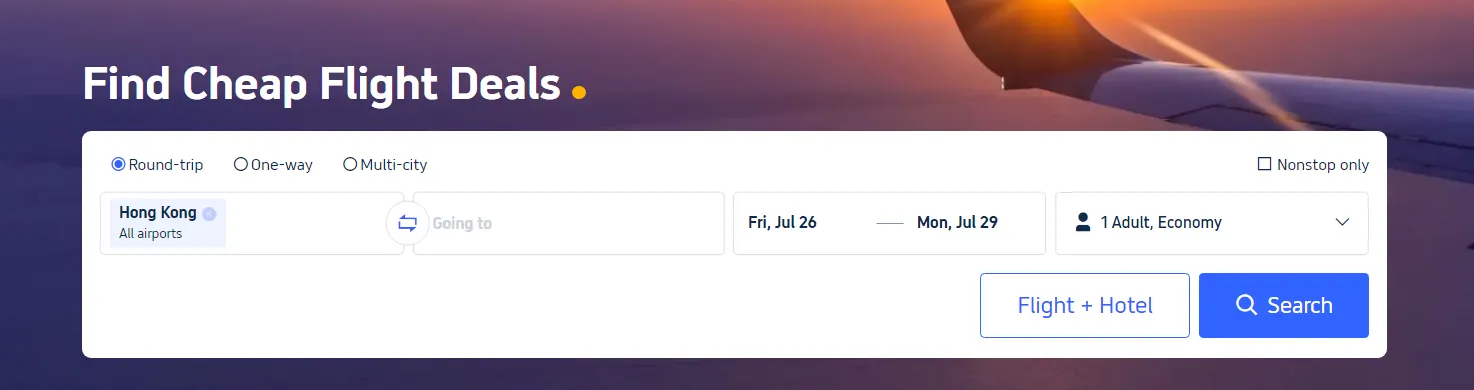
Step 3: Search for Flights
- Enter your travel details, including departure city, destination, travel dates, and the number of passengers. Click 'Search' to view available flights.
Step 4: Apply Filters
- Refine your search results by applying filters such as price, number of stops, airlines, and flight duration. This helps you find the best flight that fits your budget and preferences.
Step 5: Sort by Price
- Sort the search results by price to view the most economical options first. You can also use the calendar view to identify which days offer the lowest fares.
Step 6: Check for Deals and Discounts
- Look out for special deals and discounts. Trip.com often has promotions and offers exclusive flight discounts on selected routes or airlines.
Step 7: Set Fare Alerts
- If your travel dates are flexible, set fare alerts for your desired route. Trip.com will notify you when prices drop, allowing you to book at the best rate.
Disclaimer: This article has been provided by an individual contributor or third party platform. If there is any discrepancy regarding the copyright, please contact us directly and we will delete the content immediately.
Trending Searches
-
Popular Airlines