Trip.com Flight Tickets: Booking, Receipts, and Cancellations

By Trip.com
July 1, 2025

Find out everything about Trip.com flights, including how to book tickets, get e-tickets and receipts, cancel flights, and discover tips for finding cheap fares for flights.👍
How to Book Cheap Flight Tickets on Trip.com
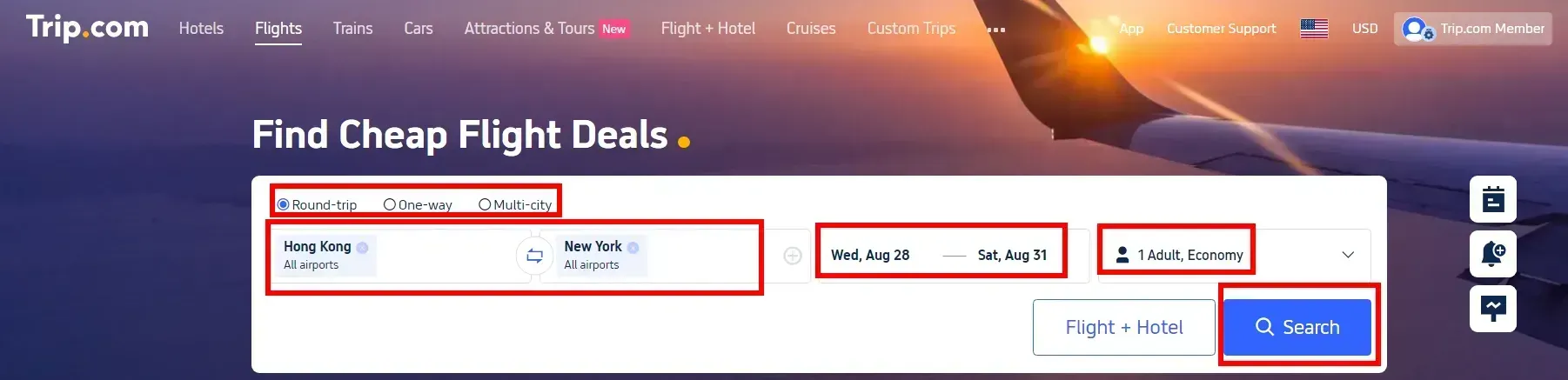
To get your flight e-ticket on Trip.com, you need to book in advance. Follow these steps to find the best and cheapest option.
- Visit Trip.com Flight Website/App: Start by accessing the Trip.com Flight website or opening the Trip.com mobile app.
- Search for flights: Enter the departure and destination city, travel dates, type of trip (one-way or round-trip), class (business or economy), and number of passengers. Click "Search" to see available flights.
- Choose Your Flight: Choose a flight that fits your schedule and budget. Use filters to sort by price, duration, or airline preferences.
- Enter Passenger Details: Provide the necessary details for all passengers. Make sure that the names match what appears on your ID card or passport.
- Payment: Review the details of the selected flight and proceed to payment. Select your preferred payment method and complete your purchase.
💖 Thinking about staying connected while traveling abroad? Explore your options for Global eSIMs, Wi-Fi solutions, and local SIM cards!✨🌞
How to Get Flight e-Receipts on Trip.com
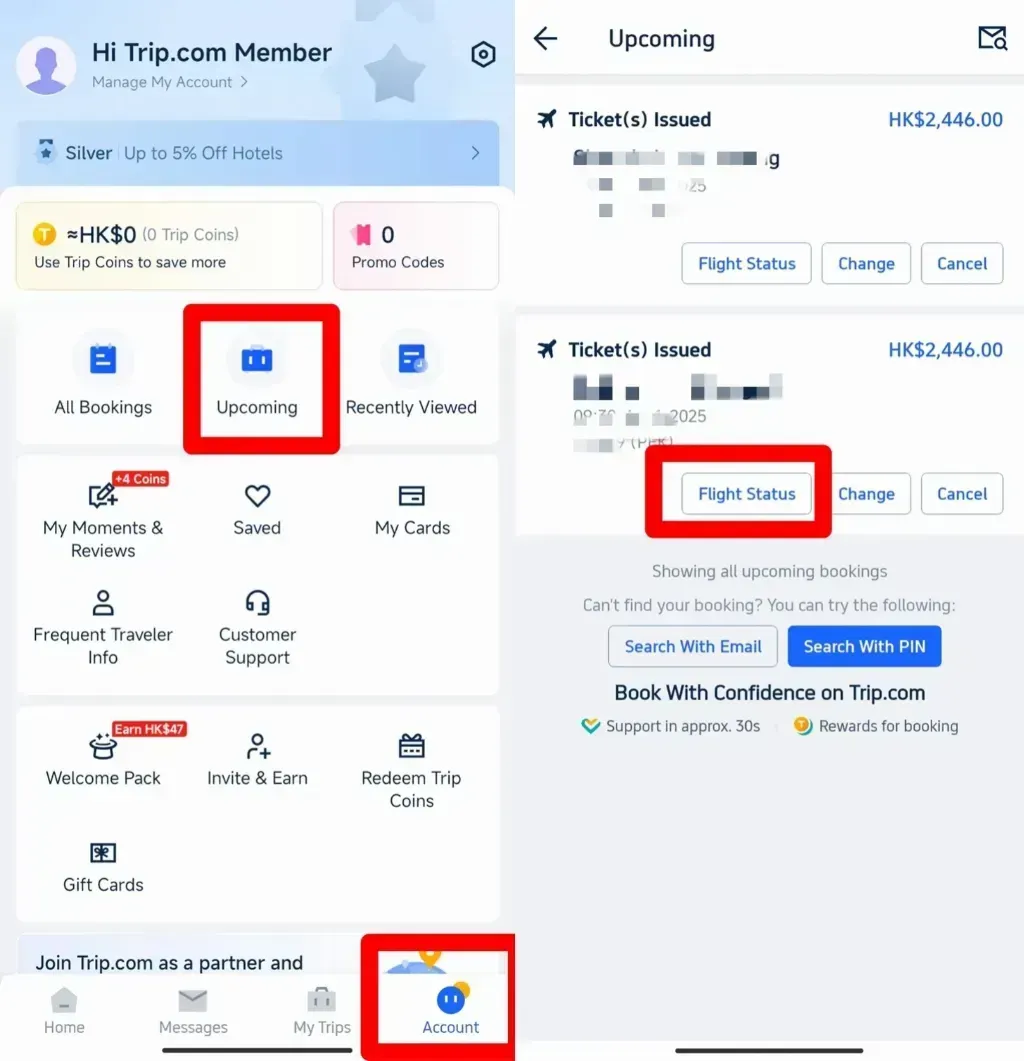
Step 1 | How to get a Flight e-Receipt
- Tap the "Account" tab at the bottom of the screen.
- Scroll to the "Upcoming" section of the "Account" page.
- Tap "Flight Status" to view your booking details.
- On the Flight Status page, tap "Manage My Bookings" at the bottom.
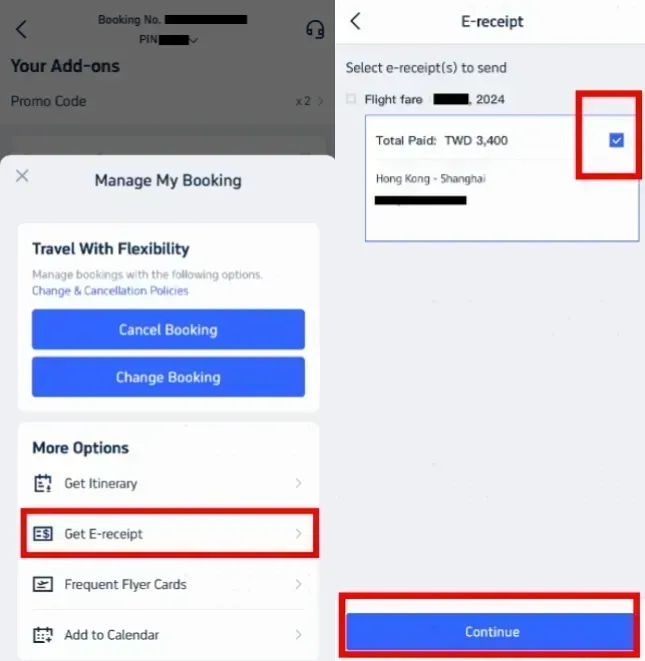
Step 2 | How to get a Flight e-Receipt
- Select "Get E-receipt" in the "More Options" section.
- Click the "Get E-receipt" button.
- On the receipt page, select the e-ticket you need.
- Click "Continue" to continue.
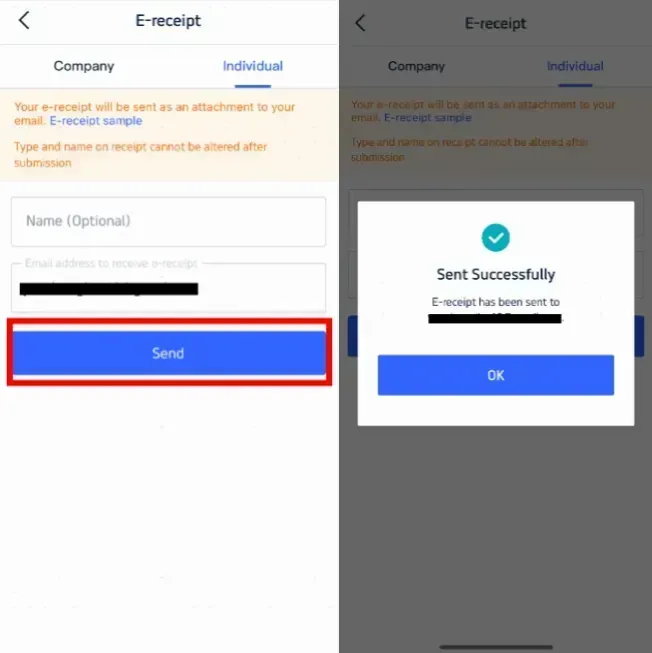
Step 3 | How to get a Flight e-Receipt
- Enter the details for the receipt.
- Select "Individual" for personal use.
- Enter your name (optional) and email address for the e-receipt.
- Click "Send.".
- You will receive a confirmation message, and an e-receipt will be sent to your email.
Flight Refund & Cancellation Policy on Trip.com
Flight refund and cancellation policies in Trip.com largely depend on the airline and the type of ticket you purchased.
While some tickets are fully refundable, others may not be refundable or incur a cancellation fee.
It's important to review the specific fare rules associated with your booking to understand your options.
【Refund and Cancellation Notes】
- Airline-Specific Policies: Each airline has its own cancellation and refund policy, which is followed by Trip.com. This policy may vary depending on the airline, fare class, and booking conditions.
- Ticket Type: The possibility of a refund often depends on the type of ticket. For example, economy tickets are often non-refundable or incur higher cancellation fees, while business and first class tickets may offer more flexibility.
- Cancellation Fee: If your ticket is eligible for a refund, you may still be charged a cancellation fee that will be deducted from your refund amount. These fees are determined by the airline and the fare rules.
How to Cancel a Flight on Trip.com
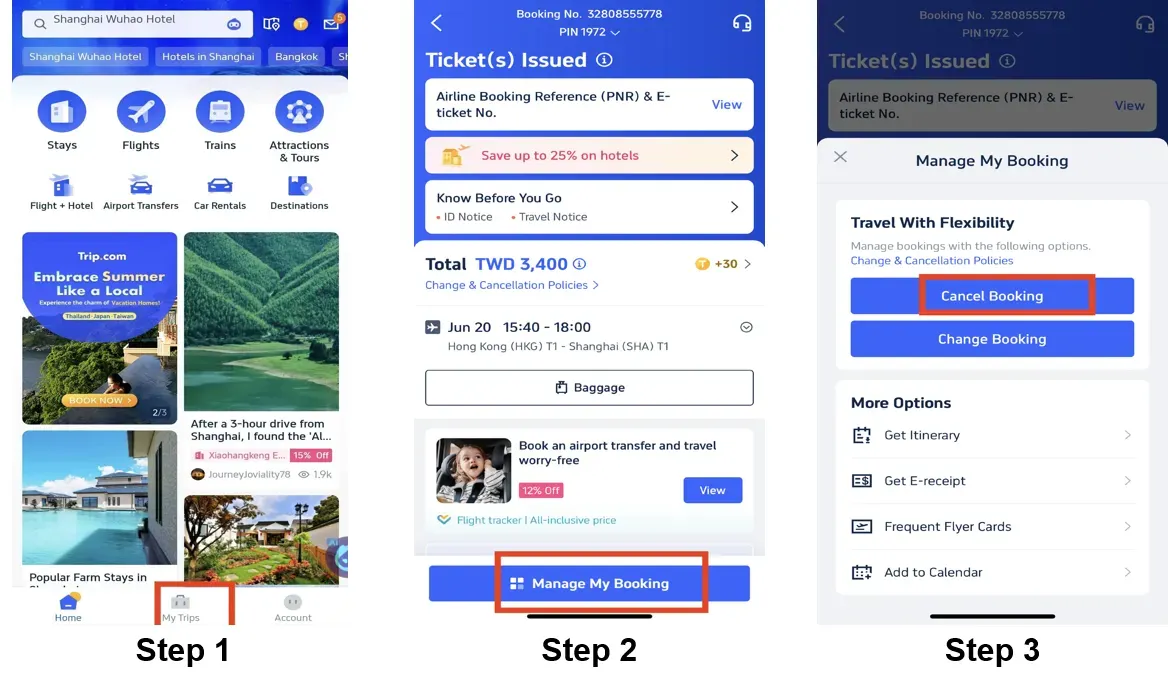
Step 1: Access "My Trips"
Open Trip.com app or visit Trip.com website. Log in to your account and go to the "My Trips" section.
Step 2: Find Your Flight Booking
In "My Trips", find the flight booking you want to cancel. Click on the booking to go to the "Manage My Booking" section.
Step 3: Start Cancellation Click on the "Cancel Booking" option.
You will be asked to review the details of your refund, including any applicable cancellation fees. This page will also show you whether or not your ticket is refundable based on the airline's policy.
Step 4: Confirm Cancellation
After reviewing the details, confirm your cancellation by submitting a request. The cancellation process will begin, and you will receive a confirmation notification from Trip.com.
Step 5: Refund Processing
Refunds are processed in accordance with the airline's policy. The time it takes for the refund to appear in your account may vary. This can take anywhere from a few days to a few weeks, depending on the airline and your payment method.
Trending Searches
-
Popular Airlines