Planning a holiday can be thrilling, but sometimes unplanned events can change your travel plans. If you have booked a hotel through Trip.com and need to cancel, you might be keen to understand Trip.com’s hotel refund policy. This article will provide you with a step-by-step guide to cancelling your hotel booking. Stay with us for all the details!
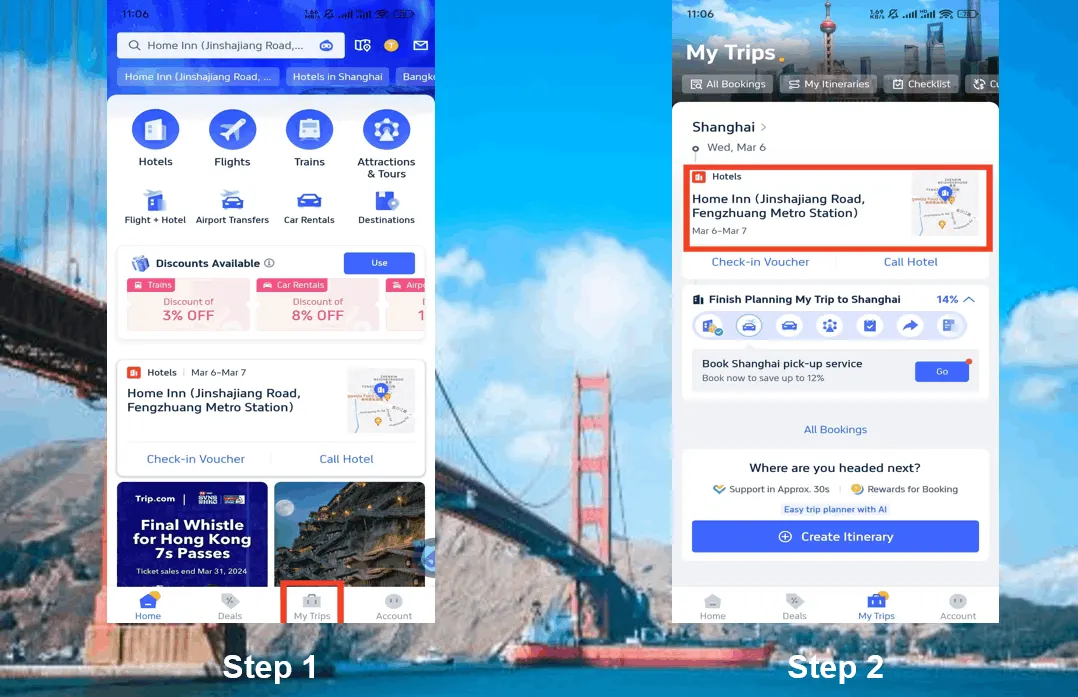
Step 1: Open the Trip.com app to get Trip.com hotel refund
Log in to your Trip.com account on your mobile device and Go to "My Trips" section. Here you will find all your bookings.
Step 2: Find the hotel booking
Select the booking you want to cancel and and click on it. This will open booking details.
Step 3: Request the Trip.com hotel refund
Click on the button "Cancel Booking" to cancel the hotel reservation. Hotels with non-refundable policies are common, but some may offer full or partial refunds if you cancel by an established date.
Step 4: Provide a reason for cancellation
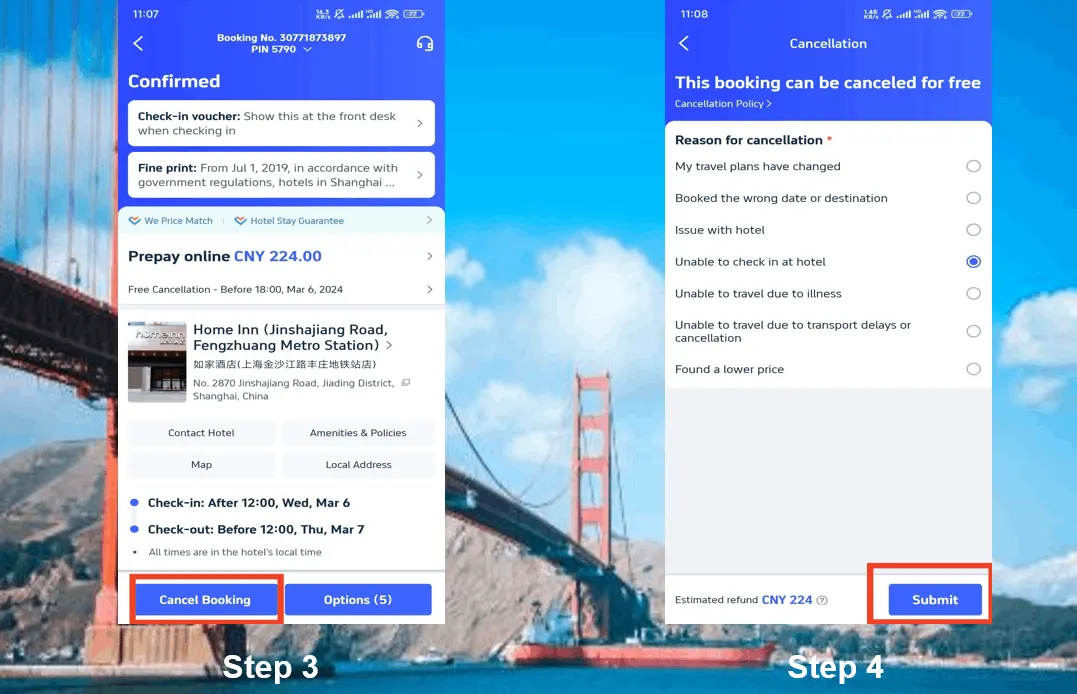
Give the reason why you need to cancel the hotel booking and click on the button "Submit" to confirm your cancellation.
Step 5: Confirm the Trip.com hotel refund
After submitting your request, click "View cancellation policy" to check your refund detail.
Step 6: Check your Trip.com hotel refund status
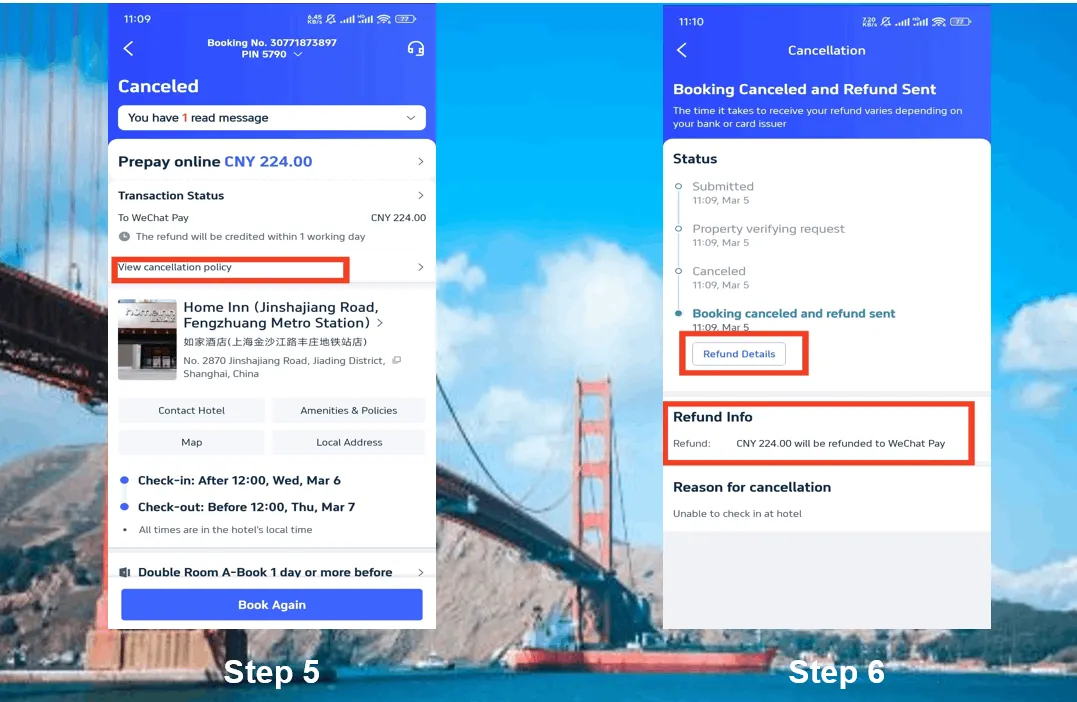
Check your refund detail and refund info to complete the process.
The screenshots are only for reference.
Special note: It typically takes one working day for the refund to be credited to your account.
Disclaimer: This article has been provided by an individual contributor or third party platform. If there is any discrepancy regarding the copyright, please contact us directly and we will delete the content immediately.