Everything About Trip.com Seat Selection and Cancellation

By Trip.com
August 27, 2024
Are you planning air travel? Discover our detailed guide on Trip.com seat selection—learn how to choose and cancel your flight seat and understand why you might skip seat selection. Choose your ideal seat and start your memorable journey now!
How to Select the Flight Seat on Trip.com?
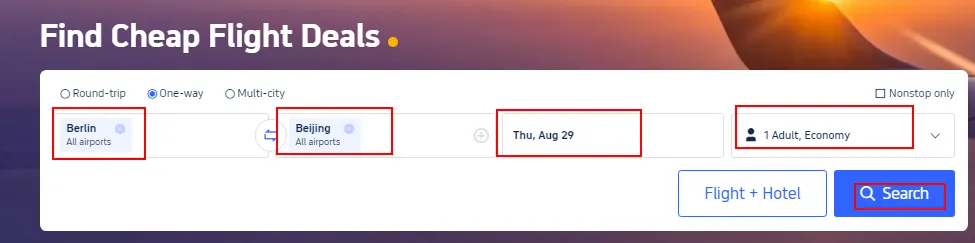
Step 1: Log in to the Trip.com Website to Purchase Your Airline Ticket.
- Log in to your Trip.com flight page, provide the departure city, arrival city, and departure time, then hit "Search" to go to the details page.
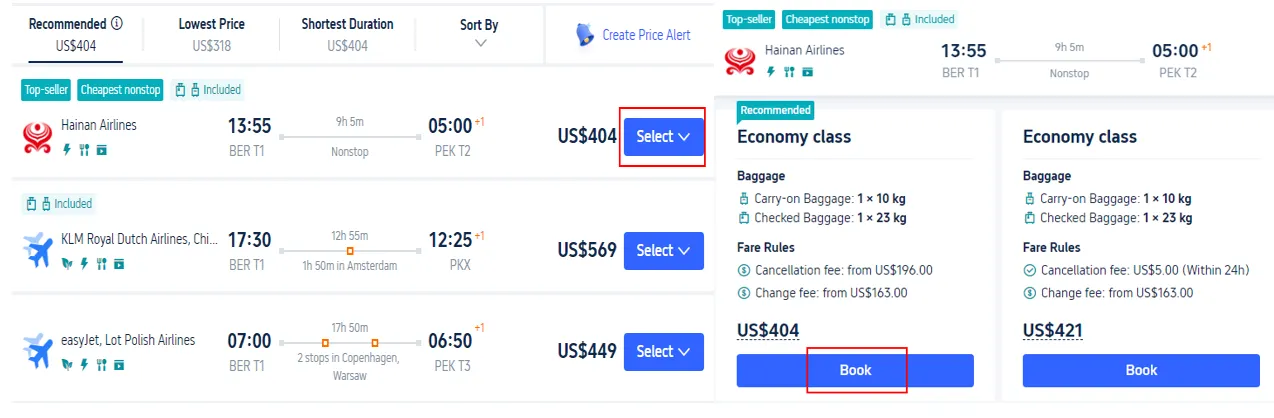
Step 2: Choose the Flight You Wish to Buy
- From the search results, pick the flight you wish to purchase, tap "Select," and then click "Book" to proceed to the booking page.
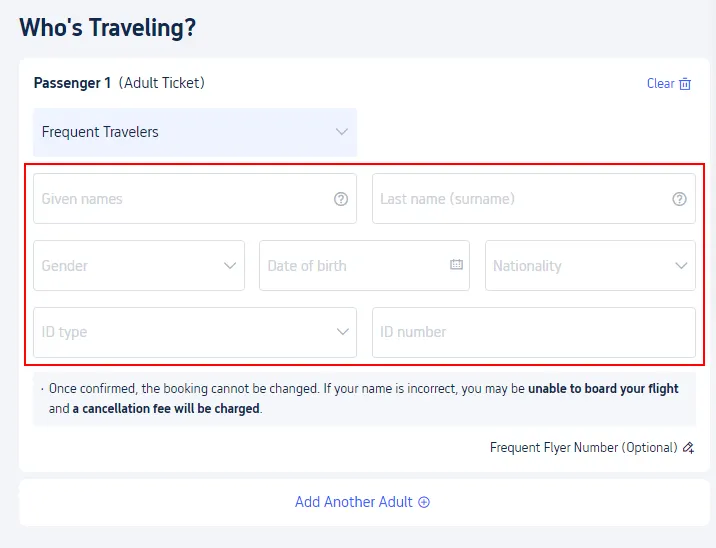
Step 3: Enter Personal Info for Trip.com Seat Selection
- Fill out your name, gender, nationality, passport number and tap "Next" to choose your flight seat.
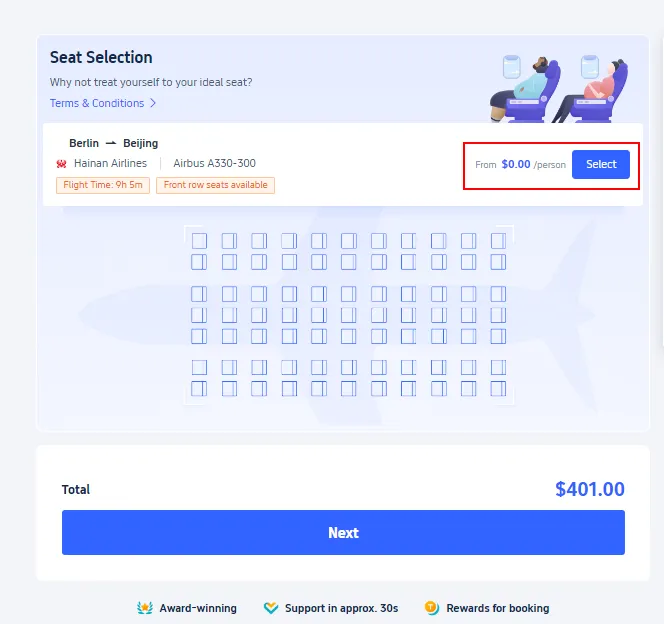
Step 4: Enter the Trip.com Seat Selection Page
- Click on "Select" to choose your preferred flight seat.
Step 5: Complete the Trip.com Seat Selection
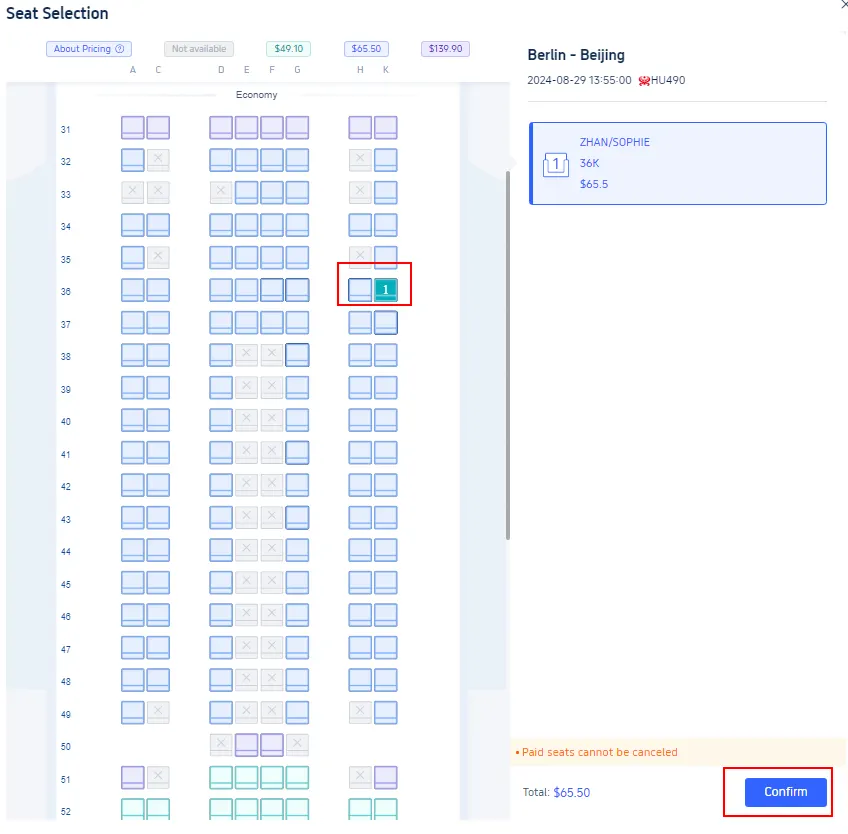
- There are typically a range of seat types to choose from. Select your preferred seat and press "Confirm" to finalise the selection.
Why Am I Unable to Select Flight Seats on Trip.com?
If you are having trouble selecting a flight seat on Trip.com, there could be several reasons. Here are some possibilities:
| Reasons | Detail |
| Airline Policy | Some airlines only allow seat selection for bookings made directly on their own websites, excluding this option when reservations are made through third-party sites. |
| Timing of Booking | Sometimes seat selection is only available after the booking has been made and the airline has processed the reservation. |
| Seat Type | If you have purchased a basic economy or a similar restricted fare, the airline may not offer free seat selection. |
| Seat Availability | When a flight is almost full, pre-selecting seats might be restricted or not possible, and seats might be allocated at the airport during check-in. |
| Group Bookings | If you are booking for a group, some systems may not allow seat selection until individual passenger details are provided. |
How to Cancel Trip.com Flight Seat Selection?

With just a few steps, you can easily cancel your flight seat selection on Trip.com:
- Step 1. Log in to your Trip.com account and select the booking for which you want to cancel the seat selection.
- Step 2. Select "Seat Selection" > "Cancel Seat Selection" to enter the detail page.
- Step 3. Select the seat you wish to cancel, confirm your selection and submit the request.
Start Your Travel with Trip.com!
Trip.com is an international online travel agency that provides round-the-clock customer service in multiple languages. It offers easy booking services for flights, hotels, and tours and activities. As Platinum & Diamond Members of Trip.com, you can access a free airport lounge, earn more Trip coins, save more on hotel booking, reduce refund fees for trains, etc.
Trending Searches
-
Popular Airlines