How to Activate eSIM in iPhone? Step by Step

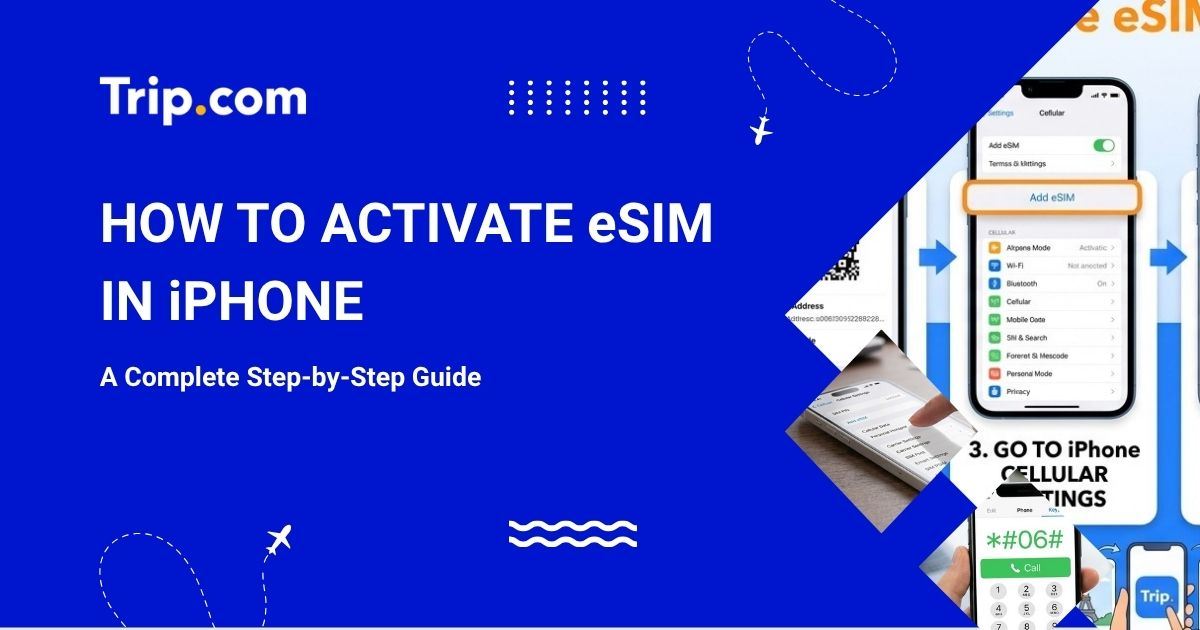
eSIMs have brought in a revolution by eliminating those long wait times at the airport SIM card kiosk. The technology lets you activate a fully functional mobile data line before you even board your flight. This guide walks you through how to activate an eSIM on your iPhone. It compares the two main setup methods, and shows how a travel Trip.com's eSIM makes the process simple.
to Bangkok
to Manila
to Shanghai
to Tokyo
to Seoul
See all flights


What Is an eSIM and Why Does It Matter for Travelers?
Note: AI-generated image. Only for reference.
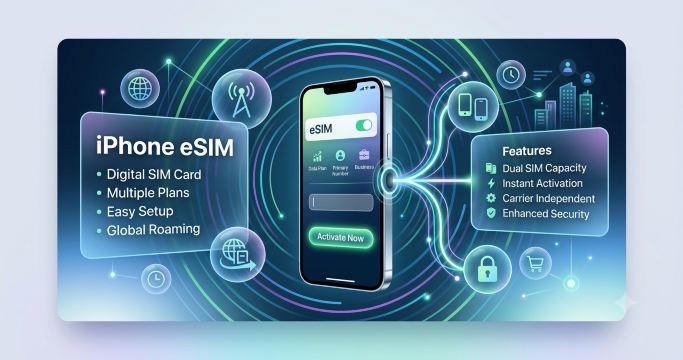
An eSIM (embedded SIM) is a digital SIM built into your iPhone's hardware. So, you don't have to insert a physical plastic chip into a side tray. eSIMs allow you to download cellular profiles over the internet and activate data plans from mobile network operators in seconds. Some benefits of eSIM include:
- Instant Purchasing and Activation: Through platforms such as Trip.com, you can buy coverage for 150+ nations and install it without waiting for physical delivery.
- Dual SIM Functionality: You can keep your primary domestic phone number active to receive SMS 2-Factor Authentication (2FA) verification codes from banks and route all high-speed mobile data through your eSIM.
- Cost Efficiency: With eSIMs, you can avoid international roaming fees by accessing local and regional data packages at competitive rates.
- Multi-Profile Storage: iPhones can store multiple eSIM profiles simultaneously, allowing you to switch between data plans when crossing international borders.
Pre-Activation Checklist: Is Your iPhone Ready for an eSIM?
Note: AI-generated image. Only for reference.
Before activating the eSIM in your iPhone, you must check if your device is ready for it. Here are the two popular methods to check it.
Note: Only iPhone XS, iPhone XS Max, iPHone XR or newer models support eSIMs.
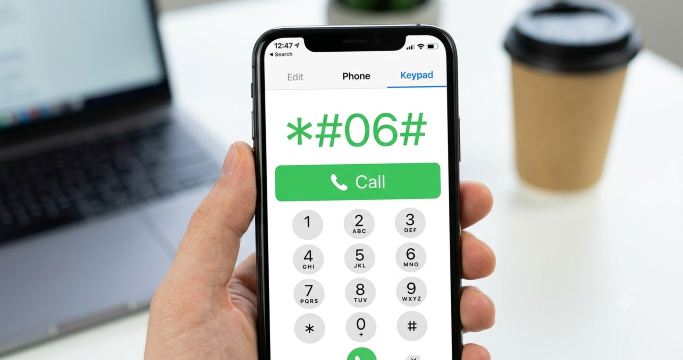
Method 1: Dial *#06# and Look for an EID
This is one of the quickest ways to check eSIM support on an iPhone.
- Open the Phone app, go to the keypad and dial *#06#.
- After dialing the code, your iPhone will show device identifiers
- To confirm eSIM support, check particularly for an EID.
- EID is an Embedded Identity Document. It is a unique identifier for the eSIM chip in the iPhone. A phone with an EID means the phone has built-in eSIM hardware.
- If your EID starts with 89, your device has eSIM capability.
- On the other hand, if you see IMEI, MEID, SEID or serial number, your device does not support eSIM.
Method 2: Check for “Add eSIM” in Settings
Yet another way of checking if your iPhone has eSIM support is through Settings.
- Go to the Settings app on your iPhone.
- Based on your region, the menu may be called Cellular, Mobile Data or Mobile Service. In India, it is labeled as Mobile Data.
- Check for the option Add eSIM. If you see an option, Add eSIM or Add Cellular Plan, your iPhone likely supports eSIM.
Ensure Your iPhone Is Unlocked
Now that you know how to check if your iPhone device supports eSIM, you must ensure your iPhone is unlocked.
- Even if your device supports eSIM, it must be unlocked to use most travel eSIM plans.
- A carrier-locked iPhone may not accept eSIM plans from other providers.
- To check this aspect, follow this iPhone unlock check path: Settings - General - About - Carrier Lock.
- If it says No SIM restrictions, your phone is unlocked.
- If your phone is locked, you must connect with your carrier before you buy a travel eSIM.
See all attractions
 672847 booked

How Do I Install and Set Up an eSIM on My iPhone?

Note: AI-generated image. Only for reference.
Direct In-App Installation via the Trip.com App
Note: AI-generated image. Only for reference.
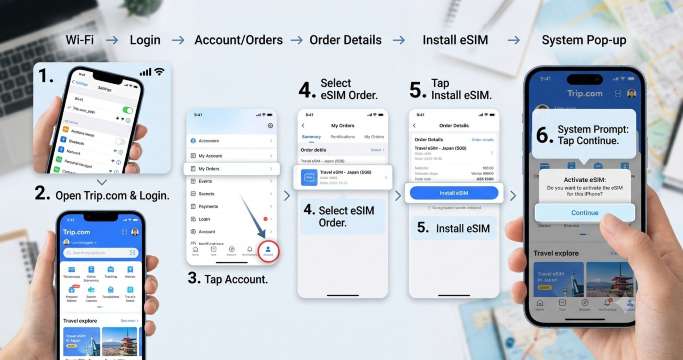
Trip.com is one of those few platforms in the world that can talk directly to iOS and trigger eSIM install prompts automatically. Here's how you can do it on the app.
- Connect your iPhone to a stable Wi-Fi network.
- Open the Trip.com app and log in into your account.
- Tap on Account at the bottom right and then select My Orders.
- Select your eSIM order.
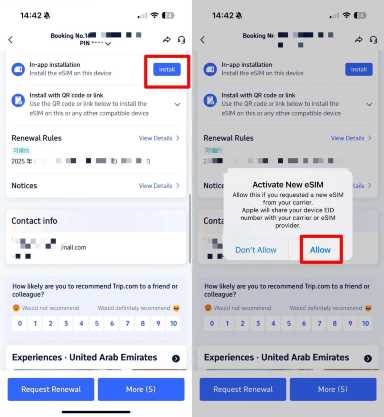
- Tap the Install eSIM button. On doing this, the app will initiate the background iOS cellular profile transfer.
- You will receive an iOS system pop-up saying Activate eSIM. Tap Continue.
- After that, follow the automatic on-screen iOS instructions to complete the process.
Set up eSIM with a QR Code
If your network provider has provided you with a QR code, you can use it to set up an eSIM in iPhone. Here's how you can activate eSIM in your iPhone.
- Turn on and set up your iPhone.
- When the Set Up Mobile screen appears, click on Use QR code.
- Follow the below onscreen instructions.
- To activate your eSIM after you set up your iPhone, connect with your network provider to receive a QR code.
- Open the Camera app to scan the QR code.
- When you see the Mobile Plan Detected notification, tap it.
- If you are using iOS 17.4 or later and get a QR code from your network provider in a default email app or browser, tap and hold the QR code. Then tap Add eSIM.
- Click Continue at the bottom of the screen.
- Next, tap Add Mobile Plan
- If the system asks you to enter a confirmation code to activate your eSIM, enter the number your network provider has provided.
Car Rentals
Car Rental Promo Code - 8% Off
New User Enjoy up to 8% Off
TRIPCAR8
Trip.com eSIM In-App Direct Installation vs. QR Code Setup
Aspect | In-App Direct Installation (Trip.com App) | QR Code Setup (Manual/Settings) |
Ease of Use | Very quick. One-tap installation within the app; zero code entry. | Requires scanning a printed code or using a second screen/photo. |
Hardware Needed | Single iPhone only | May require a second screen or saved photo gallery scan. |
Speed | Less than 60 seconds | 2-3 minutes |
Scope of Error | Virtually zero. Fully automated profile deployment. | Risk of camera misreads |
Best For | On-the-go travelers who book on the Trip.com mobile app. | Travelers booking on desktop browsers or receiving voucher PDFs. |
How to Switch Between a SIM Card and an eSIM on iPhone?
Note: AI-generated image. Only for reference.
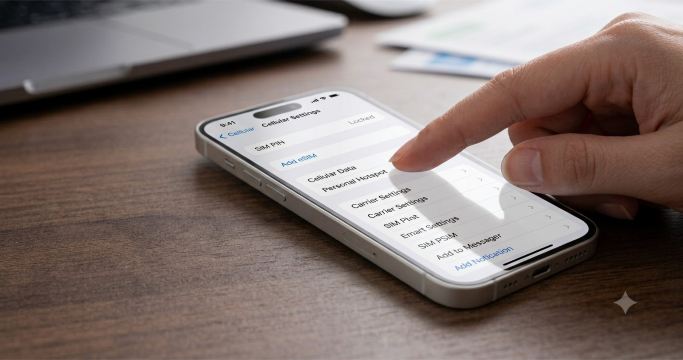
You can easily switch between a SIM card and an eSIM on your iPhone with the following steps.
- Open Settings on your iPhone.
- Scroll down and tap Mobile Service.
- Tap Mobile Data.
- Here, you will see your physical SIM and eSIM lines.
- Tap the option you want to use for data.
- As a result, your iPhone will switch to using the line for mobile data.
How to Activate eSIM in iPhone Upon Arrival at Your Destination
Note: AI-generated image. Only for reference.
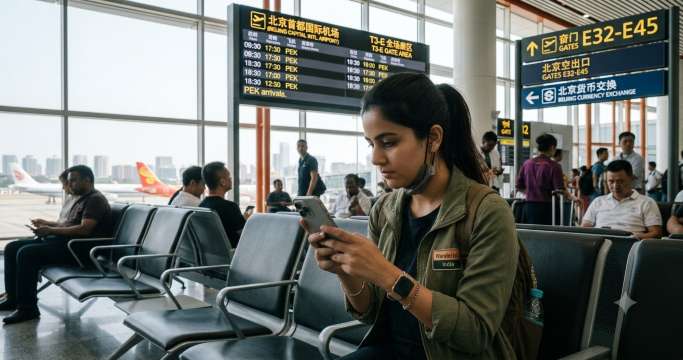
Once you land in your destination country, you can complete the final activation process in less than a minute.
- Go to Settings> Mobile Data (or cellular)
- Under SIMs, tap your travel line (for example, Trip.com Global)
- Toggle Turn On This Line to ON.
- Tap into your travel eSIM settings and toggle Data Roaming to ON.
- Make sure your primary Indian SIM (Jio/Airtel/Vi) has Data Roaming turned OFF.

The Palace Museum
4.9/5
47494 reviewsSusi is an excellent Forbidden City tour guide whose English commentary is very clear. Even though we got separated mid-way due to the massive crowds, she managed to find me and worked incredibly hard to catch me up on all the highlights. Thanks to her efforts, my tour of the Forbidden City became much clearer and more efficient.


Thang Long Water Puppet Theatre
4.3/5
347 reviewsThe performance, which features local characteristics, incorporates local folk culture into the story. For first-time tourists to Vietnam, it allows them to have a multi-sensory experience and learn about Hanoi's history and culture in a short theater visit.


eSIM Not Working on iPhone? Quick Troubleshooting & Fixes
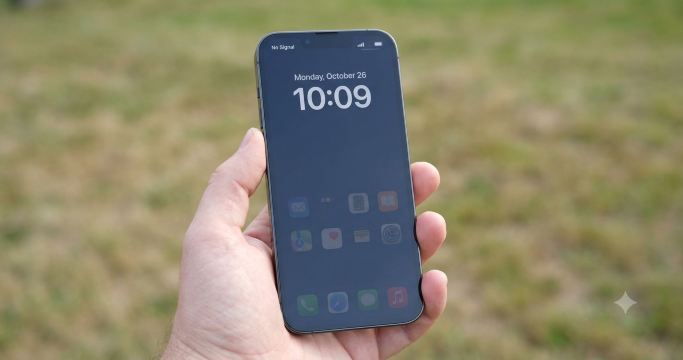
Note: AI-generated image. Only for reference.
Here's what you can do if your travel eSIM does not connect immediately upon your arrival.
No Service or Unable to Access Internet
- Verify Data Roaming: Go to Settings > Mobile Data > [Trip.com eSIM] and confirm Data Roaming is turned ON.
- Toggle Airplane Mode: Turn Airplane Mode ON for 10 seconds. Then turn it OFF to allow your iPhone to scan local mobile towers.
- Manual Network Selection: Go to Settings > Mobile Data > Network Selection, toggle off Automatic. Next, select the local network carrier partner specified in your Trip.com order confirmation.
Connected but Data is Very Slow
- Restart Your iPhone: Restart the phone to flush network caches and register afresh on the foreign network.
- Verify APN Details: Open Settings > Mobile Data > [Trip.com eSIM] > Mobile Data Network. Make sure that the Access Point Name (APN) matches the string on your Trip.com order page.
QR Code Scan Fails
- Increase your screen brightness on the device displaying the code
- Hold your iPhone steady and ensure there's no glare.
- If it repeatedly fails, most providers, including Trip.com, let you request the code be resent or switch to in-app installation instead.
🔥[Discount] Global Hotel Recommendations
Find Best Global Hotels
See All Hotels







Commonly Asked Questions About iPhone eSIM
-
How to choose the right eSIM plan for your trip?
-
Can I use two eSIMs on my iPhone simultaneously?
-
Will activating a travel eSIM affect my home phone number?
-
Do I need internet access to install an eSIM?
-
Is it possible to reuse the same eSIM on my next trip?
Disclaimer: This article has been provided by an individual contributor or third party platform. If there is any discrepancy regarding the copyright, please contact us directly and we will delete the content immediately.
Trending Searches
-
Popular Airlines
-
Popular Cities